
Admin-Assistente per Magento® 2.x

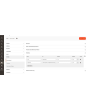
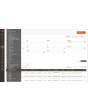
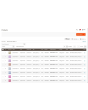
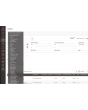


L’Admin-Assistente offre a chi gestisce il negozio gli strumenti che il pannello di Adobe Commerce (Magento) non include: ricerca basata su regole nelle griglie in cui lavori ogni giorno, scorciatoie alle pagine che apri di continuo e una risposta chiara su che cosa è installato, che cosa è configurato dove e che cosa stanno facendo i processi in background.
Trovare un ordine da ciò che contiene, verificare un’impostazione su tutte le viste negozio, vedere per quali estensioni è disponibile un aggiornamento, capire se il cron è stato eseguito — di solito ognuna di queste cose richiede un export, un cambio di ambito o un messaggio a uno sviluppatore. L’Admin-Assistente risponde dal pannello di amministrazione.
Ogni strumento ha il proprio permesso, così a un ruolo si possono dare le griglie senza la diagnostica, o il contrario.
Funzioni
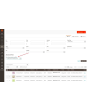
Filtri avanzati per ordini, fatture, spedizioni, note di credito e prodotti
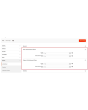
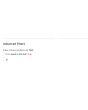
Il filtro funziona come una regola di prezzo del carrello: aggiungi una condizione, scegli attributo, operatore e valore e combina le condizioni con TUTTE o QUALSIASI. Le condizioni non si limitano alle colonne della griglia.
Nelle griglie di vendita coprono totali, quantità e peso, il metodo di spedizione, l’indirizzo completo di fatturazione e spedizione, nome, e-mail e gruppo del cliente, metodo di pagamento, stato e negozio — più una combinazione di attributi di prodotto, che individua un ordine da ciò che contiene. « Ordini sopra un importo che contengono un prodotto di questo marchio e spediti in questo Paese » diventa una sola interrogazione invece di un export e un foglio di calcolo.
Un’interrogazione che costruisci spesso può essere salvata come preset e riapplicata con un clic. Ogni griglia si attiva separatamente e i filtri standard di Magento possono restare o essere nascosti una volta presenti quelli avanzati.
Dashboard
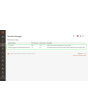
Una pagina che elenca ogni strumento dell’estensione e se è attivo, con un collegamento a ciascuno. Una pagina di partenza pratica dopo l’accesso e il modo più rapido per capire come è configurata l’estensione su un’installazione che non conosci.
Hotlinks
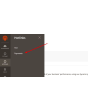
Accesso rapido alle pagine di amministrazione che usi di continuo — Vendite → Metodi di pagamento, una sezione specifica della configurazione, una griglia in cui vivi. Aggiungile con titolo e URL, ordinale, disattivane alcune; compaiono nella barra laterale per tutti.
Gli hotlink automatici fanno lo stesso senza che glielo si chieda: l’estensione conta le pagine visitate da ciascun utente e propone a quella persona le sue più visitate, fino al limite che imposti.
Informazioni sulle estensioni installate
Ogni pacchetto di terze parti installato con la versione corrente, l’ultima pubblicata e l’indicazione di un aggiornamento disponibile. Nessuna sessione SSH e nessun comando composer per rispondere a « siamo indietro da qualche parte? ».
Informazioni sull’ambiente
Versione, edizione e modalità di Adobe Commerce (Magento); la versione di PHP, i suoi limiti di memoria e di upload e le estensioni caricate; dimensione del database e numero di tabelle; se Redis e il motore di ricerca rispondono; e quanto spazio occupano le cartelle di log, cache, media, static e generated. La pagina da cui di solito parte una richiesta di supporto.
Monitor del cron
Ogni job dichiarato dall’installazione, con gruppo, espressione di pianificazione, ultimo stato, ultima esecuzione e durata, oltre allo storico. I job si possono eseguire subito dalla griglia. Un job mai eseguito viene indicato chiaramente — di solito il modo più veloce per scoprire che il cron non gira con l’utente giusto.
Confronto delle configurazioni
Ogni percorso di configurazione sovrascritto da un sito web o da una vista negozio, con l’ambito, il valore in vigore lì e il valore predefinito da cui si discosta. Dopo un import di configurazione o una migrazione, questa è la lista di tutto ciò che non è standard, su una sola schermata.
Configurazione multistore
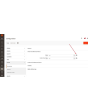
Nella configurazione, un campo gestito mostra una piccola icona accanto all’input. Un clic mostra il valore di quel campo in ogni negozio dell’installazione — senza cambiare ambito, senza passare in rassegna i siti uno per uno. Per chi gestisce più di un negozio, questo fa risparmiare ore.
Visualizzatore di plugin e preference
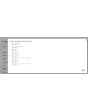
Quali plugin intercettano una classe, in quale ordine e su quali metodi, con ricerca per classe di destinazione, classe del plugin o modulo; e a quale classe concreta viene risolta ogni interfaccia. Un filtro mostra solo i metodi toccati da più di un plugin — è lì che vivono i conflitti tra estensioni.
Sessioni di amministrazione
Ogni sessione di amministrazione con utente, indirizzo IP, stato, ora di inizio e ultima attività, e un’azione di disconnessione forzata che la chiude subito: la richiesta successiva da quel browser finisce sulla schermata di accesso.
Gestione degli indici
La griglia nativa di gestione degli indici guadagna un contatore di arretrato e l’ultimo errore per indicizzatore, oltre a una pagina di dettaglio con storico delle esecuzioni, dipendenze e due controlli. Pausa ferma del tutto gli aggiornamenti pianificati di un indicizzatore; Throttle li limita a un passaggio ogni N minuti. Entrambi sono pensati per un import massivo o una migrazione di dati — metti in pausa ciò che non deve stare al passo e reindicizza una volta alla fine. Una reindicizzazione manuale viene sempre eseguita, qualunque cosa dica il controllo.
Grid delle categorie
L’albero delle categorie come griglia piatta: ordinabile, filtrabile, con percorso, livello, stato, posizione e conteggio prodotti aggiornato. Trova le categorie senza prodotti, riattiva in blocco quelle disattivate per errore, modifica un nome direttamente nella riga. Con molte categorie la differenza rispetto all’albero è immediata.
Conservare le tabelle del database alla rimozione delle estensioni
Quando un modulo viene disattivato, Adobe Commerce (Magento) elimina le sue tabelle al successivo aggiornamento. L’Admin-Assistente lo impedisce, così un modulo spento per un pomeriggio non porta via i suoi dati. Le tabelle vengono rimosse solo quando un modulo lo richiede esplicitamente tramite i propri data patch.
Attivare/disattivare Two-Factor Authentication dal pannello di amministrazione
L’autenticazione a due fattori può essere bypassata dalla configurazione, separatamente per l’accesso al pannello e per la generazione dei token API, con l’opzione di escludere il bypass in modalità sviluppatore. Pensato per un test di carico, una copia ripristinata della produzione o un’installazione già dietro a un provider di identità che impone l’MFA — non per un negozio pubblico privo di un equivalente.
Logs Manager Pro
Il modulo Logs Manager Pro è completamente integrato nell’Admin-Assistente. Acquistando l’Admin-Assistente ottieni gratuitamente tutte le funzioni di Logs Manager Pro.
Maggiori informazioni sulle possibilità di Logs Manager Pro sono disponibili qui.
Backup Manager Pro
Il modulo Backup Manager Pro è completamente integrato nell’Admin-Assistente. Acquistando l’Admin-Assistente ottieni gratuitamente tutte le funzioni di Backup Manager Pro.
Maggiori informazioni sulle possibilità di Backup Manager Pro sono disponibili qui.
Demo
Potete provare questa estensione per 30 giorni. Richiedete la demo da questa stessa pagina con Richiedi demo; come funziona è spiegato in Prova un'estensione per 30 giorni.
| CMS | Magento 2 |
|---|---|
| Compatibilità | 2.4, 2.3 |
| Funzionalità |
|
L’estensione si installa con Composer. Quale repository aggiungere dipende da dove l’avete acquistata — l’installazione in sé è identica nei due casi.
1. Collegare il repository
Acquistata su extmag.com. La pagina del vostro account mostra l’indirizzo del repository e le vostre credenziali personali, insieme ai due comandi composer config da incollare. Eseguiteli una volta per progetto; da quel momento ogni estensione che possedete è disponibile dallo stesso repository.
Acquistata sull’Adobe Commerce Marketplace. Il pacchetto viene servito da repo.magento.com, già configurato nella maggior parte degli store. In caso contrario, aggiungete le access key del vostro account Adobe in My Profile -> Access Keys.
2. Installare l’estensione
Eseguite nella radice del progetto:
composer require extmag/improver
php bin/magento setup:upgrade
php bin/magento cache:flush
Composer risolve i pacchetti Extmag condivisi da cui l’estensione dipende: non c’è altro da richiedere a mano.
Uscite dall’admin e rientrate: l’estensione è pronta.
Storage cloud
Il supporto per Dropbox e Google Drive è incluso nell’estensione. OneDrive richiede un pacchetto aggiuntivo:
composer require krizalys/onedrive-php-sdk
Provarla prima di acquistare
Potete richiedere una demo di 30 giorni di questa estensione e installarla esattamente come sopra: stesso pacchetto, stesso repository, stessi comandi. Come funzionano le demo.
Installare senza Composer
L’archivio può essere scompattato in app/code/Extmag/, ma così l’estensione resta fuori dalla gestione delle dipendenze: i pacchetti condivisi vanno installati a mano e gli aggiornamenti non la raggiungono mai. Usate Composer per qualsiasi store che gestite, demo compresa.
Per qualsiasi domanda sull’installazione, scrivete al nostro supporto tecnico.
-
User Guide User Guide.pdf · 1.3 MBScarica
-
Reference Manual Reference Manual.pdf · 356.2 KBScarica
-
Installation Guide Installation Guide.pdf · 230.0 KBScarica
AdminWizard aggiunge una serie di strumenti all’admin Adobe Commerce (Magento), sotto il menu Extmag. La maggior parte funziona appena installata l’estensione; da configurare ci sono le griglie che ricevono i filtri avanzati, le scorciatoie nella barra laterale e se usare o meno l’aggiramento dell’autenticazione a due fattori.
Dashboard
- Andate su Admin Main Menu -> Extmag -> AdminWizard -> Dashboard.
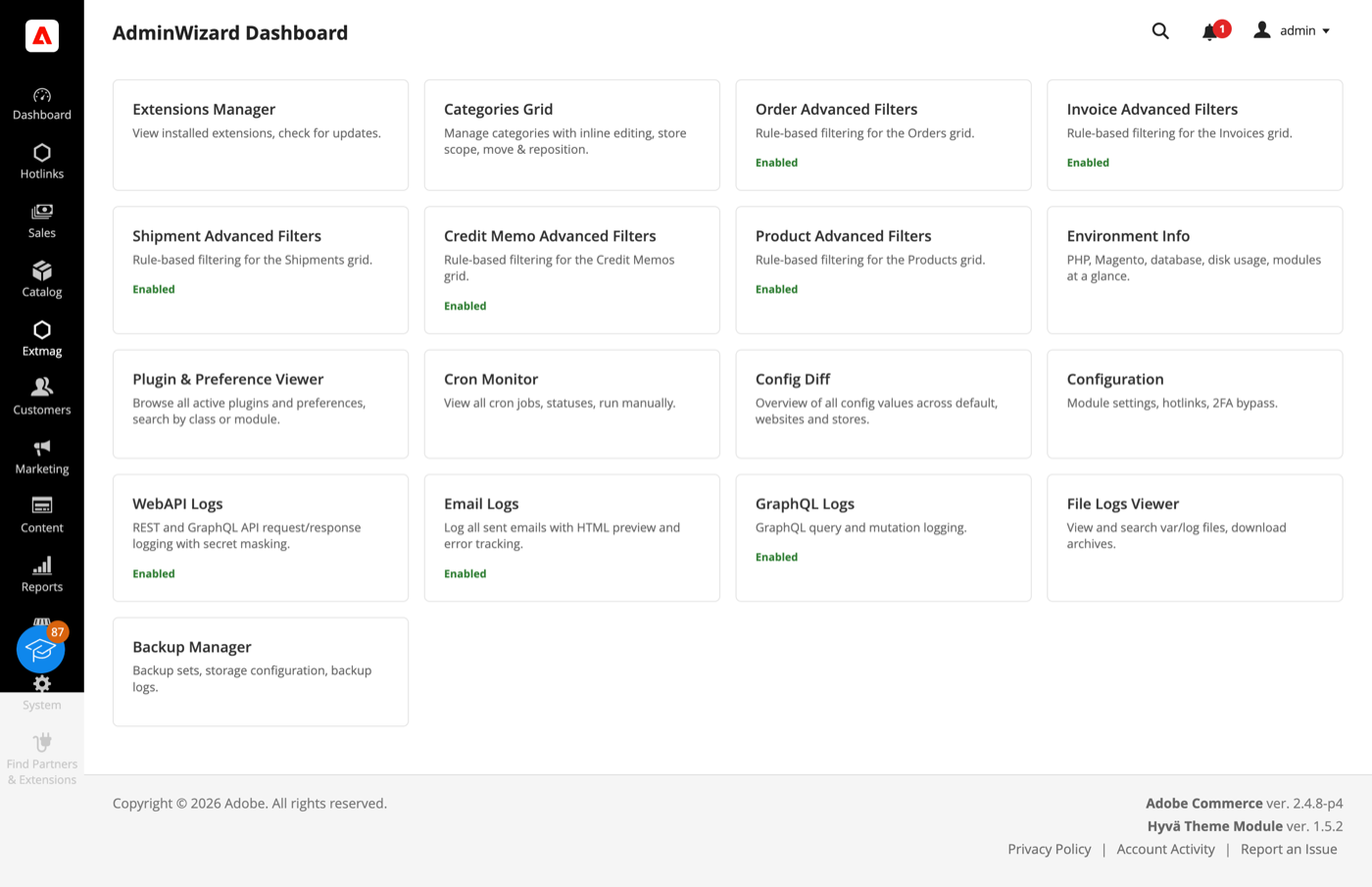
- Ogni strumento è una scheda: quelle attive lo dichiarano e ciascuna apre la propria pagina. È una comoda pagina di arrivo dopo il login — lo stato dell’estensione e l’accesso a tutto su un solo schermo.
La dashboard elenca anche gli strumenti che arrivano da Logs Manager Pro e Backup Manager Pro. Entrambi sono inclusi in AdminWizard senza costi aggiuntivi, quindi le loro schede sono reali e non pubblicità.
Advanced Filters per le griglie
- Aprite Sales -> Orders (oppure Invoices, Shipments, Credit Memos, o Catalog -> Products) e fate clic su «Advanced Filters» accanto ai filtri standard.
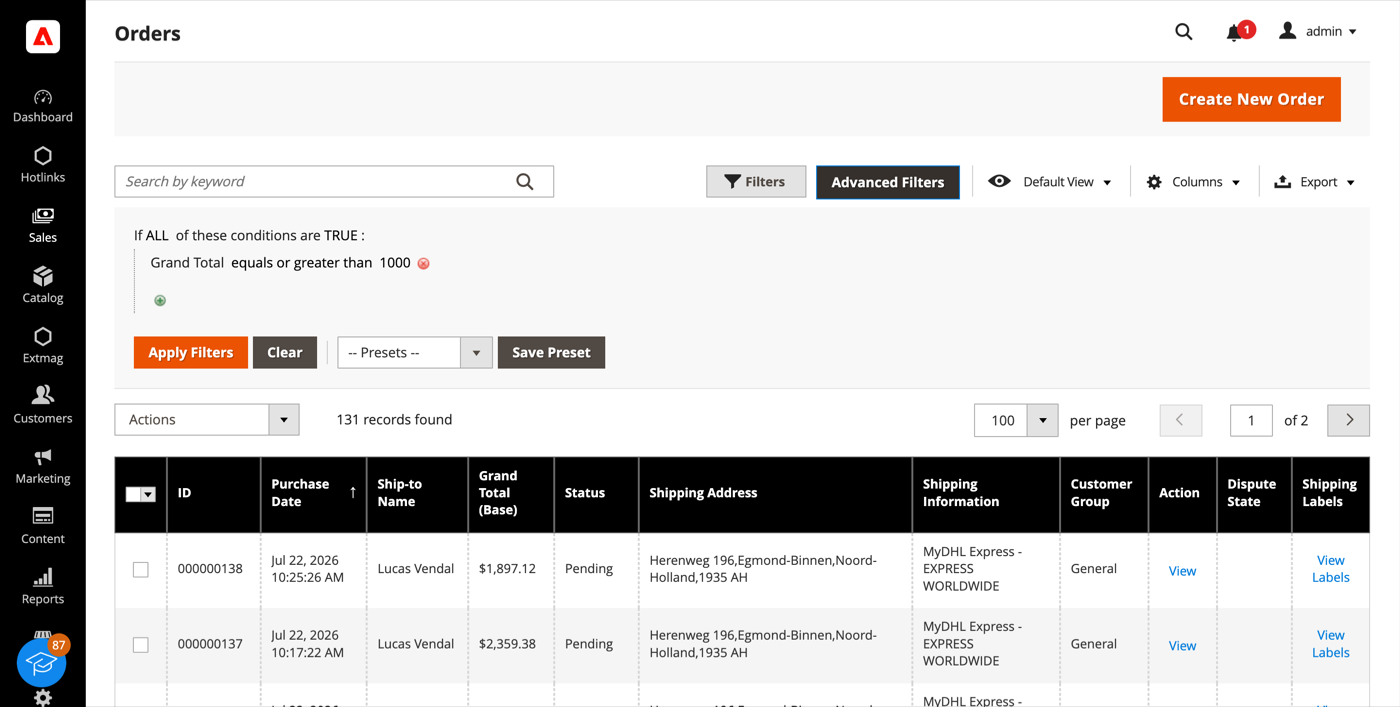
- Costruite la query come una regola del carrello: aggiungete una condizione, scegliete attributo, operatore e valore, e combinate le condizioni con ALL / ANY.
- Fate clic su «Apply Filters». La griglia si ricarica mostrando solo le righe corrispondenti.
- «Save Preset» conserva una query che usate spesso: compare nell’elenco Presets e la volta successiva è a un clic.
L’elenco delle condizioni non si limita alle colonne della griglia. Nelle griglie di vendita copre totali, quantità, peso, metodo di spedizione, indirizzo completo di fatturazione e spedizione, nome del cliente, e-mail e gruppo, metodo di pagamento, stato dell’ordine e store, più una condizione sugli attributi di prodotto che individua un ordine da ciò che contiene. «Ordini contenenti un prodotto di questa marca sopra questo prezzo» è una singola condizione, non un export e un foglio di calcolo.
Extensions List ed Environment Info
- Andate su Admin Main Menu -> Extmag -> AdminWizard -> Extensions List.
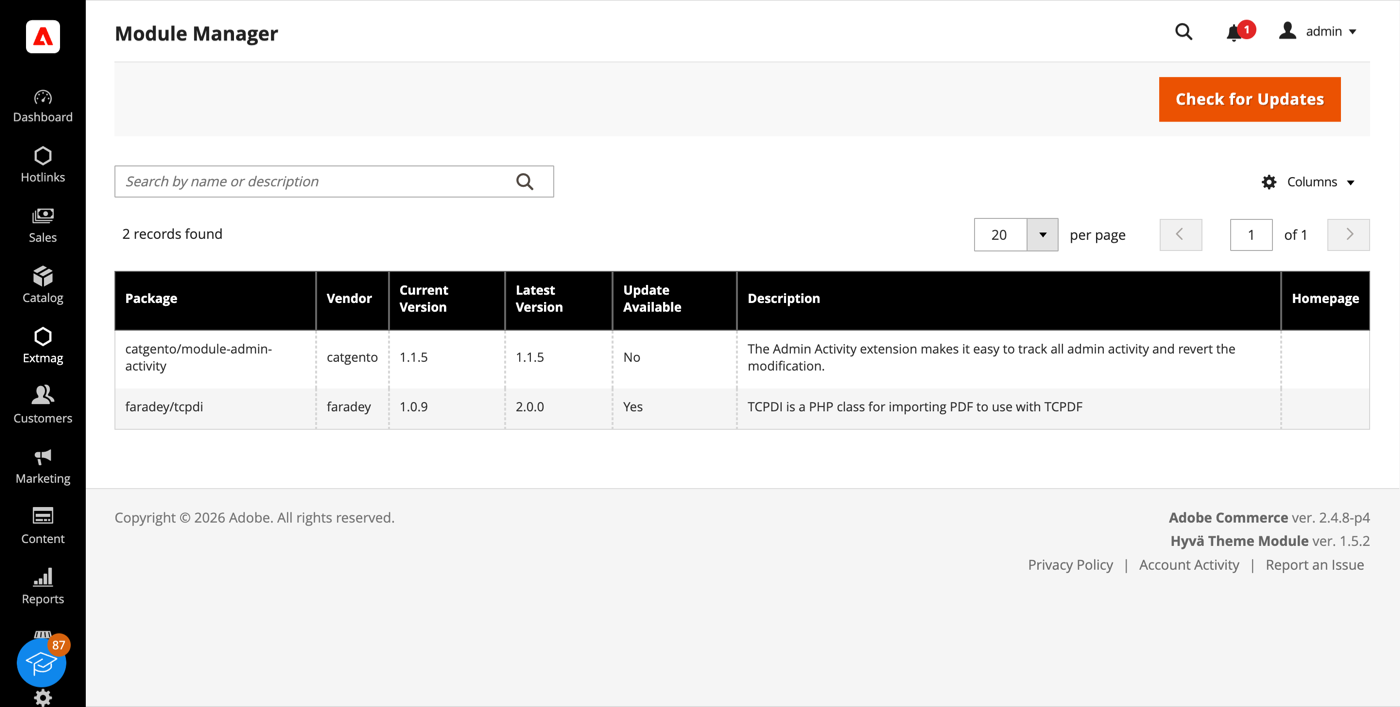
- Fate clic su «Check for Updates». La griglia mostra ogni pacchetto di terze parti installato con la versione attuale, l’ultima pubblicata e se esiste un aggiornamento.
- Environment Info, nello stesso menu, dà il resto del quadro: versione, edizione e modalità di Magento, versione di PHP e i suoi limiti, estensioni caricate, dimensione del database e numero di tabelle, stato di Redis e del motore di ricerca, e quanto disco occupano le cartelle log, cache, media, static e generated.
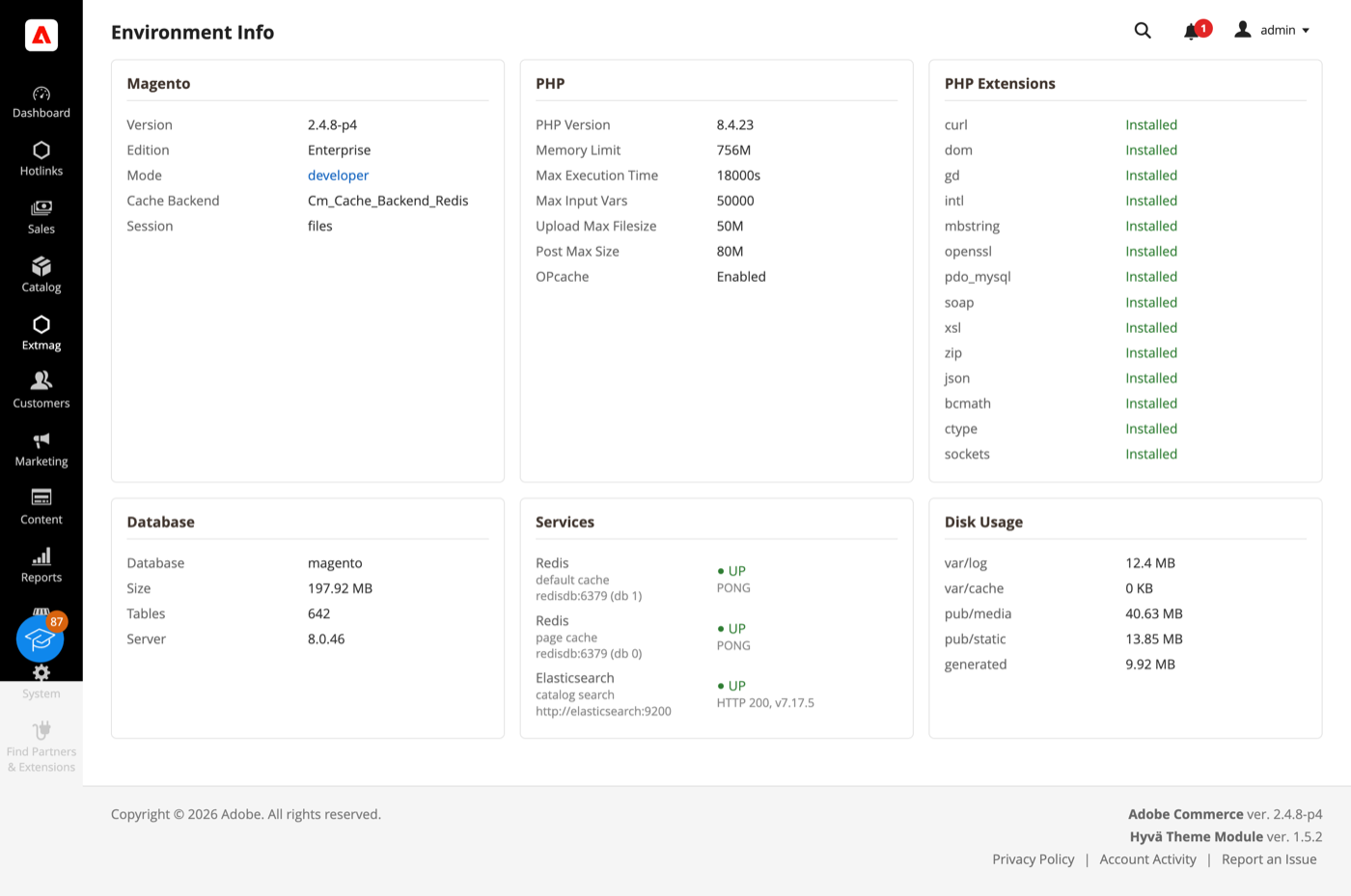
Entrambe le pagine rispondono alle domande con cui di solito inizia una richiesta di supporto, senza aprire una sessione SSH.
Cron Monitor
- Andate su Admin Main Menu -> Extmag -> AdminWizard -> Cron Monitor.
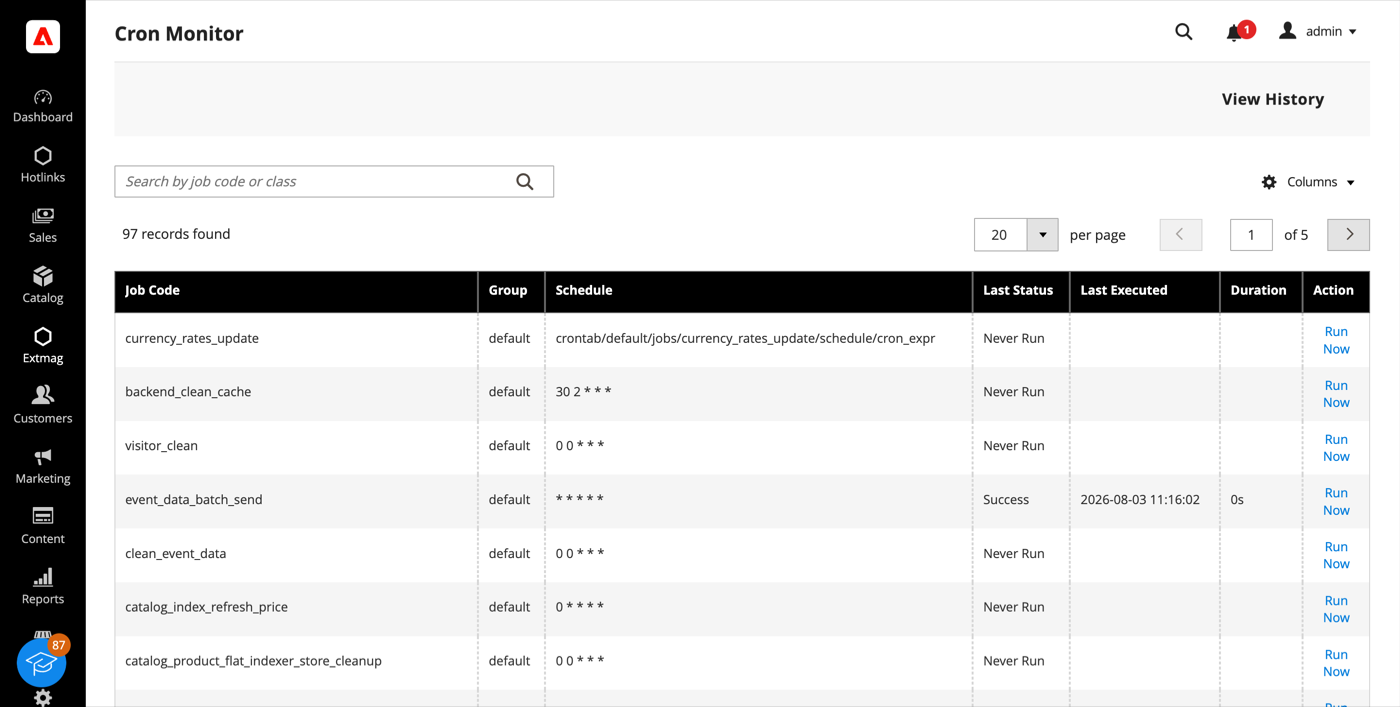
- La griglia elenca ogni job dichiarato dall’installazione: gruppo, espressione di pianificazione, ultimo stato, ultima esecuzione e durata.
- «Run Now» esegue un singolo job all’istante; «View History» ne mostra le esecuzioni passate. Un job che non è mai partito viene indicato chiaramente, ed è di solito il modo più rapido per scoprire che il cron non gira con l’utente giusto.
Config Diff
- Andate su Admin Main Menu -> Extmag -> AdminWizard -> Config Diff.
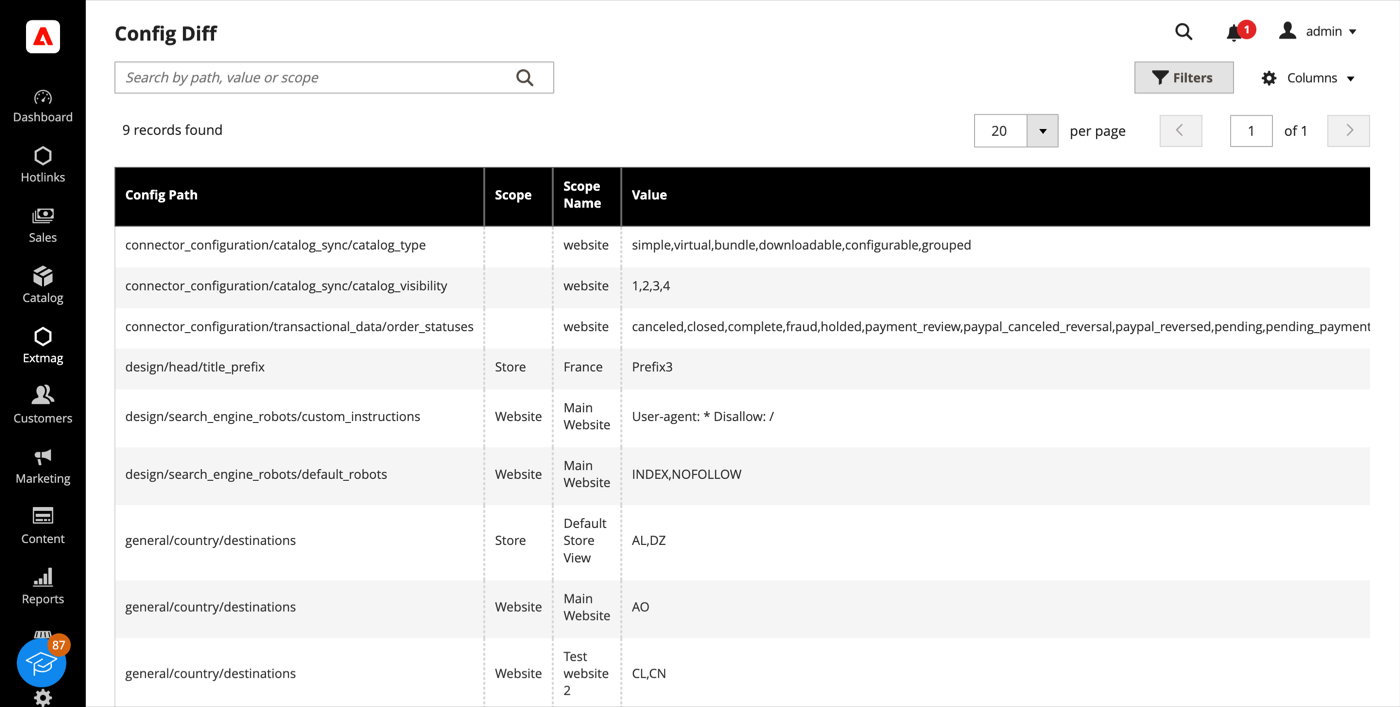
- La griglia elenca ogni percorso di configurazione che un sito web o una store view sovrascrive, con lo scope, il valore in vigore lì e il valore predefinito da cui si discosta.
La stessa informazione è disponibile campo per campo altrove nell’admin: un campo gestito da AdminWizard mostra un’icona a ingranaggio accanto all’input e, facendoci clic, elenca il valore di quel campo su ogni store senza cambiare scope.
Plugin & Preference Viewer
- Andate su Admin Main Menu -> Extmag -> AdminWizard -> Plugin & Preference Viewer.
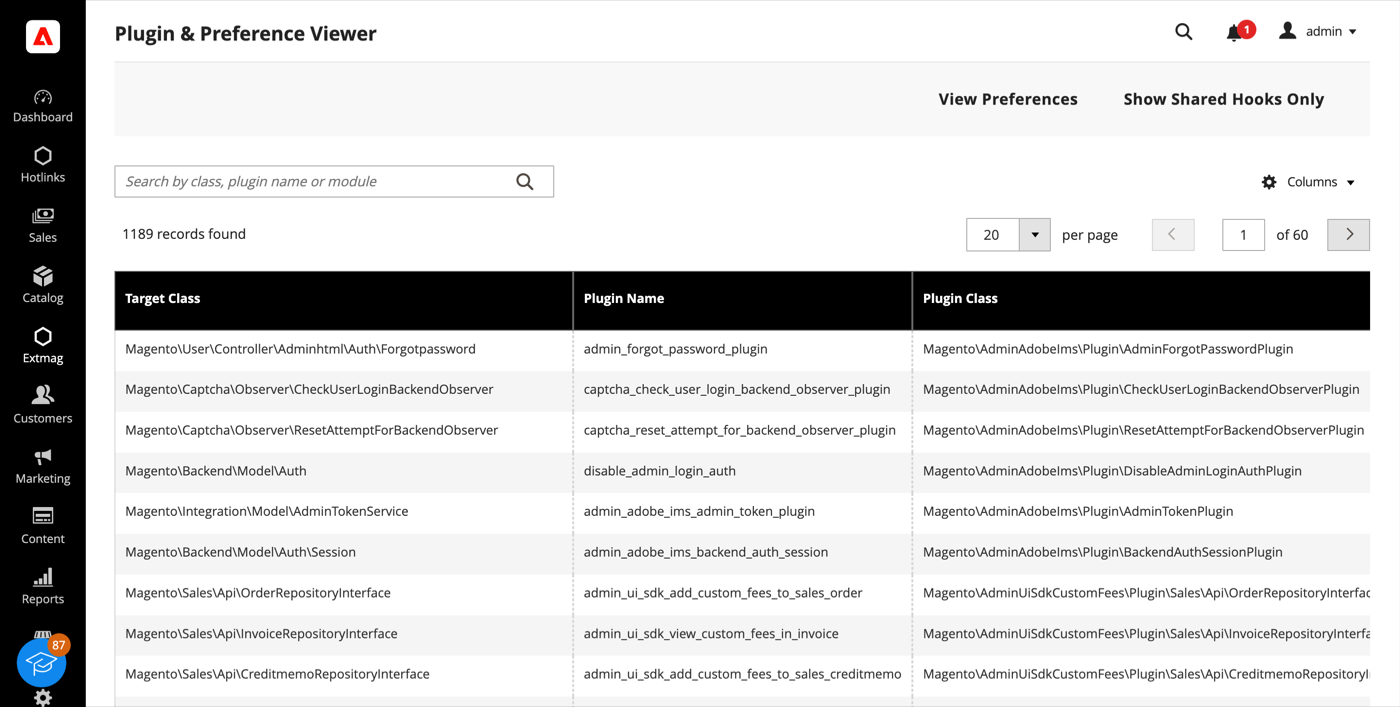
- Cercate per classe target, classe del plugin o modulo per vedere ogni plugin che intercetta una classe, in ordine di sort, con i metodi su cui si aggancia. «View Preferences» passa all’elenco delle preference: a quale classe concreta si risolve ogni interfaccia.
- «Show Shared Hooks Only» restringe l’elenco ai metodi toccati da più di un plugin, ed è lì che vivono i conflitti fra estensioni.
Admin Sessions e Categories Grid
- Admin Sessions (Extmag -> AdminWizard -> Admin Sessions) elenca ogni sessione admin con utente, IP, stato, ora di inizio e ultima attività. Un Force Logout per riga chiude la sessione all’istante: la richiesta successiva da quel browser finisce sulla schermata di login.
- Categories Grid (Catalog -> Inventory -> Categories Grid) mostra l’albero delle categorie come griglia piatta, ordinabile e filtrabile, con percorso, livello, stato, posizione e conteggio prodotti aggiornato. Filtrare per conteggio prodotti vuoto o attivare un lotto di categorie richiede secondi, dove la vista ad albero richiede molti clic.
Index Management
La griglia nativa System -> Tools -> Index Management guadagna un contatore di arretrato e l’ultimo errore per indicizzatore, oltre a una pagina di dettaglio con cronologia delle esecuzioni, dipendenze e due comandi: Pause ferma del tutto gli aggiornamenti pianificati di un indicizzatore, Throttle li limita a un passaggio ogni tot minuti. Entrambi servono per un import massivo o una migrazione: mettete in pausa ciò che non deve stare al passo e reindicizzate una volta alla fine. Una reindicizzazione manuale parte sempre, qualunque cosa dica il blocco.
Configurazione
- Andate su Admin Main Menu -> Extmag -> AdminWizard -> Configuration.
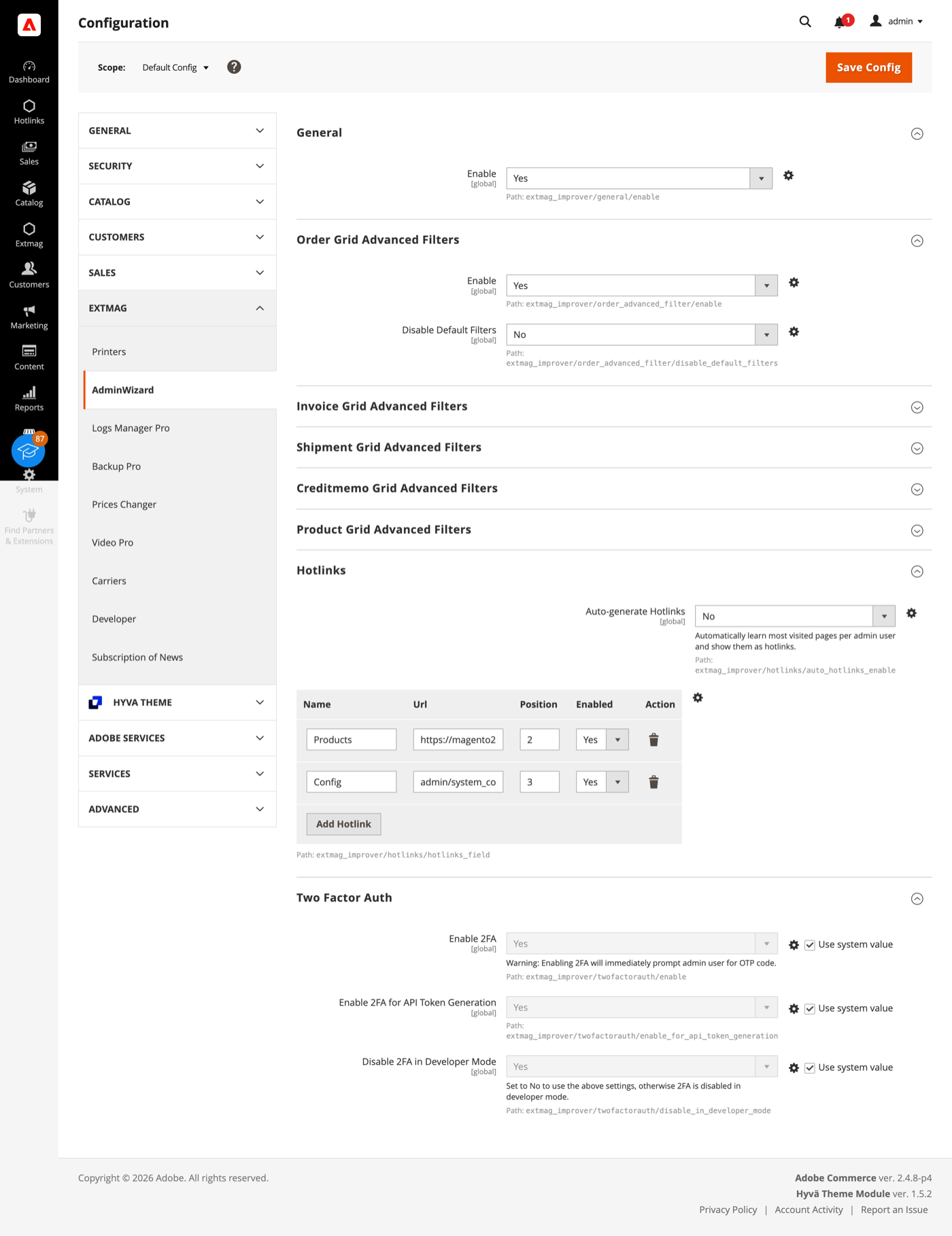
- Percorrete i gruppi compilando ciò che riguarda il vostro store.
I gruppi coprono:
- General — l’interruttore principale dell’estensione.
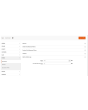
- Order, Invoice, Shipment, Credit Memo e Product Grid Advanced Filters — un gruppo per griglia: se i filtri avanzati compaiono lì e se i filtri standard di Magento vengono nascosti una volta presenti.
- Hotlinks — una tabella di scorciatoie (titolo e URL, ordinabili e attivabili singolarmente) che compaiono come voce Hotlinks nella barra laterale dell’admin per tutti. Attivate Auto-generate Hotlinks e ogni operatore ottiene in più le proprie pagine più visitate, entro il limite che impostate.
- Two Factor Auth — se l’autenticazione a due fattori di Magento viene aggirata, separatamente per il login all’admin e per la generazione dei token API, con l’opzione di escludere l’aggiramento in modalità sviluppatore.
L’autenticazione a due fattori è una misura di sicurezza. Attivate l’aggiramento per un test di carico, per una copia ripristinata della produzione o per un’installazione già dietro a un identity provider che impone l’MFA — non su uno store di produzione pubblico senza che qualcos’altro svolga quel compito.
Una cosa funziona senza alcuna impostazione: quando un modulo viene disattivato, Adobe Commerce (Magento) elimina le sue tabelle di database al successivo setup:upgrade. AdminWizard lo impedisce, così disattivare temporaneamente un modulo non ne distrugge i dati. È attivo per impostazione predefinita.
Il riferimento completo campo per campo, con i percorsi di configurazione esatti e le risorse ACL dietro ogni pagina, è nel Reference Manual fornito con l’estensione.
1.4.7
Use injected $escaper instead of $block->escape*() in admin templates. Bind reload link via JS to comply with CSP restrict mode.
1.4.6
Fixed clearing advanced filters by iterating remove buttons and applying.
1.4.5
Added support Magento 2.4.9 and Adobe Commerce 2.4.9
1.4.4
Major refactoring: replace AdminActionLog with AdminSession, add Dashboard and new tools. Added support Magento 2.4.8-p4 and Adobe Commerce 2.4.8-p4
1.4.0
Added support Magento 2.4.7-p4 and Adobe Commerce 2.4.7-p4
1.3.9
Added support Magento 2.4.7-p3 and Adobe Commerce 2.4.7-p3
1.3.8
Added support Magento 2.4.7-p2 and Adobe Commerce 2.4.7-p2
1.3.7
Added support Magento 2.4.7-p1 and Adobe Commerce 2.4.7-p1
1.3.6
Fixed names of Google API classes. There were changing underscores to namespaces.
1.3.5
Backup Core:
Fixed Google Drive connection
Improved the frequency of the schedule
1.3.4
Added support Magento 2.4.7 and Adobe Commerce 2.4.7
1.3.3
Fixed bug with nullable variable in the method attribute
Fixed schedule frequency for the backup
1.3.2
Added support Magento 2.4.6-p4 and Adobe Commerce 2.4.6-p4
1.3.1
Removed extra button from Admin Actions Log Grid
1.3.0
A category grid has been added. Now you can manage your categories very conveniently. Now it’s convenient to filter, sort, create, edit, and delete them.
1.2.8
Added Advanced Filters for the Creditmemo Grid.
1.2.7
Added the ability to reverse admin actions. For example, you can return the saving of a configuration or product if it was done incorrectly or by mistake.
1.2.6
Added Advanced Filters for the Shipments Grid.
Added "Product Type", "Has Options", and "Required options" as filters for the Products grid.
1.2.5
Enable/disable two-factor authentication from the admin panel.
1.2.4
The Backup Manager Pro module has been integrated into the Admin Wizard module and has become part of it.
To check the correct connection to Cloud Storages, Test Connection buttons for Microsoft OneDrive, Google Drive, and Dropbox were added.
1.2.3
Fixed a bug with the Google Drive connection
1.2.2
The Logs Manager Pro module has been integrated into the Admin Wizard module and has become part of it.
To check the correct connection to Cloud Storages, Test Connection buttons for Microsoft OneDrive, Google Drive, and Dropbox were added.
1.2.1
Added support Magento 2.4.6-p2 and Adobe Commerce 2.4.6-p2
1.2.0
Implementation advanced filters for invoices.
Add translations.
1.1.0
Added support Adobe Commerce 2.4.6-p1
1.0.0
Added the new version 1.0.0


