
UPS Universal Shipping voor Magento® 2.x

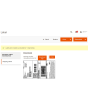
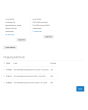
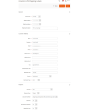
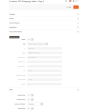
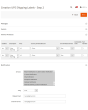
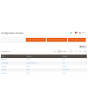
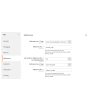
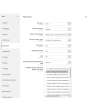
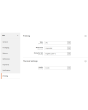
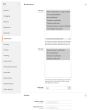
UPS Universal Shipping is een Magento 2-extensie waarmee u de volledige UPS-verzend-cyclus beheert via de UPS (United Parcel Service) API.
De extensie biedt een breed scala aan instellingen. Haal actuele verzendtarieven op en maak thermische (ZPL, EPL) en PDF-UPS-verzendlabels aan. Plan ophalingen en volg uw pakketten.
De belangrijkste voordelen van de UPS Universal Shipping-extensie:
Thermische en PDF-verzendlabels
Het aanmaken van verzendlabels kan zowel handmatig als automatisch en zelfs gepland gebeuren. De UPS Universal Shipping-extensie koppelt het verzendlabel aan een bestelling, een levering of een creditnota. Alle labels worden op uw server opgeslagen en zijn op elk moment toegankelijk via de admin-interface van uw Magento-website.
Voor het handmatig aanmaken van elk label kunt u de gewenste verzendmethode kiezen uit de door UPS aangeboden methoden en ziet u direct de verzendkosten. In de automatische modus worden labels aangemaakt volgens de door de klant gekozen methode of tegen de minimale/maximale prijs van alle UPS-methoden.
Paperless Commercial Invoice
UPS Universal Shipping ondersteunt wereldwijde zendingen. Voor zendingen naar het buitenland wordt de papierloze (of papieren) uitgifte van de douanefactuur (International Invoice) aangeboden. Hiervoor ondersteunt UPS Universal Shipping de volgende instellingen: Harmonized- en ScheduleB-codes, Dangerous Goods en Hazardous Materials, leveringsvoorwaarden, Reason for Export, Sold To Address en meer.
Verzendtarieven & verzendmethoden
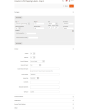
Ontvang verzendtarieven in de checkout zoals op ups.com. Verzendprijzen hangen meestal af van verzekering, opgegeven pakketwaarde, gewicht, afmetingen enz. — onze extensie houdt met al deze punten rekening. De kosten van een methode kunnen zowel statisch als dynamisch zijn. Zowel prijzen als de weergave van de methode kunnen via limieten worden aangepast. Optioneel toont u de methode alleen in het admin-paneel. U maakt zoveel methoden aan als u wilt. Meer details hier.
Betaling, COD, verzekering
Pas de betaler aan uw bedrijfsprocessen aan. Verzending kan worden betaald door de verzender (Shipper) of een derde partij (Third Party), Duty and Taxes zowel door de ontvanger als de verzender. U regelt ook de verzekering (Insured) en gebruikt Invoice Line Total. Indien nodig vult u een belastingnummer in (Tins number — Taxpayer Identification). Wil de koper onder rembours betalen, gebruik dan de optie COD (Cash on Delivery).
Retourlabels en RMA
Het aanmaken van retourlabels is net zo eenvoudig als dat van reguliere verzendlabels. Een groot pluspunt: retourlabels kunnen tegelijk met het reguliere label worden aangemaakt.
De beheerder kan de klant de mogelijkheid geven om retourlabels zelf aan te maken en af te drukken.
Ophalen en tracking
Bestel het ophalen van pakketten direct vanuit het admin-paneel van uw webshop. Alles is eenvoudig en snel geregeld. U kiest voor welke aangemaakte labels een ophaling moet worden besteld en de extensie stuurt het verzoek naar de bezorgdienst. In elke ophaling ziet u op elk moment wat er is verzonden. Een voorbeeld van een Pickup Slips-document voor meerdere zendingen ziet u hier.
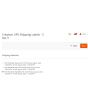
Na het verzenden van de pakketten volgt u ze met onze UPS Universal Shipping-extensie. U ziet alle stations die het pakket heeft gepasseerd en de huidige locatie.
Afdrukken
Afdrukken is een van de belangrijkste stappen bij het werken met verzendlabels. Gebruik onze app om thermische en PDF-labels af te drukken op lokale en netwerkprinters. U ontvangt deze hier.
Configuratie
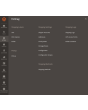
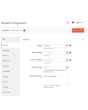
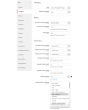
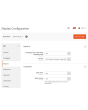
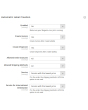
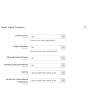
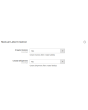
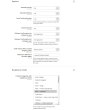
Dankzij flexibele instellingen zijn de mogelijkheden van onze module praktisch onbeperkt. Tegelijk zijn de instellingen intuïtief en zijn er veel standaard ingesteld. U configureert de extensie voor een specifieke store of een specifiek land. U past bepaalde instellingen toe op binnenlandse zendingen en andere op buitenlandse zendingen. Volledig gescheiden instellingen voor reguliere en retourlabels zijn ook mogelijk. Voor elk continent kunnen eigen instellingen worden vastgelegd — ook dat is met onze module mogelijk.
Demo
U kunt deze extensie 30 dagen uitproberen. Vraag de demo aan op deze pagina met Demo aanvragen; hoe het werkt leest u op Probeer een extensie 30 dagen uit.
Hyva Theme en Hyva Checkout
Compatibel met Hyva Theme en Hyva Checkout
| CMS | Magento 2 |
|---|---|
| Compatibiliteit | 2.4, 2.3 |
| Functies |
|
De extensie wordt met Composer geïnstalleerd. Welke repository u toevoegt hangt af van waar u haar heeft gekocht — de installatie zelf is in beide gevallen dezelfde.
1. De repository koppelen
Gekocht op extmag.com. Uw accountpagina toont het adres van de repository en uw persoonlijke inloggegevens, samen met de twee composer config-commando’s om te plakken. Voer ze één keer per project uit; daarna is elke extensie die u bezit beschikbaar uit dezelfde repository.
Gekocht op de Adobe Commerce Marketplace. Het pakket komt van repo.magento.com, dat de meeste winkels al ingesteld hebben. Zo niet, voeg dan de access keys uit uw Adobe-account toe onder My Profile -> Access Keys.
2. De extensie installeren
Voer uit in de projectmap:
composer require extmag/upsshipping2
php bin/magento setup:upgrade
php bin/magento cache:flush
Composer lost de gedeelde Extmag-pakketten op waarvan de extensie afhangt, dus er hoeft verder niets met de hand te worden opgegeven.
Log uit de admin en weer in, en de extensie is klaar voor gebruik.
Labels afdrukken
Om labels op een lokale of netwerkprinter af te drukken, installeert u onze printsoftware via deze pagina en volgt u daarna Installatie en configuratie van el-Print.
Hyva Theme en Hyva Checkout
Winkels op Hyva hebben één pakket extra nodig:
composer require extmag/shiplab-hyva
composer require magewirephp/magewire
De integratie vervangt één Hyva-template, view/frontend/templates/checkout/shipping/method-list.phtml. Overschrijft uw thema dat bestand al, voeg de wijzigingen dan samen in plaats van het te vervangen.
Uitproberen voordat u koopt
U kunt een demo van 30 dagen van deze extensie aanvragen en die precies zo installeren als hierboven — hetzelfde pakket, dezelfde repository, dezelfde commando’s. Hoe demo’s werken.
Installeren zonder Composer
Het archief kan ook in app/code/Extmag/ worden uitgepakt, maar daarmee valt de extensie buiten het afhankelijkheidsbeheer: haar gedeelde pakketten moeten met de hand worden geïnstalleerd en updates bereiken haar nooit. Gebruik Composer voor elke winkel die u draait, ook voor de demo.
Heeft u een vraag over de installatie, neem dan contact op met onze technische support.
-
User Guide User Guide.pdf · 1.1 MBDownloaden
-
Reference Manual Reference Manual.pdf · 403.0 KBDownloaden
-
Installation Guide Installation Guide.pdf · 1.0 MBDownloaden
UPS wordt ingericht vanuit het Extmag-menu in de Adobe Commerce-(Magento-)admin. Voeg het vervoerdersaccount toe, de adressen waarvandaan u verzendt, de dozen waarin u verpakt en de verzendmethoden die klanten zien, en stem daarna de configuratie van de vervoerder af.
UPS-account
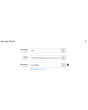
- Heeft u nog geen UPS-inloggegevens, vraag ze dan aan bij UPS. U heeft een Client ID, Client Secret en Shipper Number uit het UPS Developer Portal nodig.
- Ga naar Admin Main Menu -> Extmag -> Settings -> Shipper Accounts.
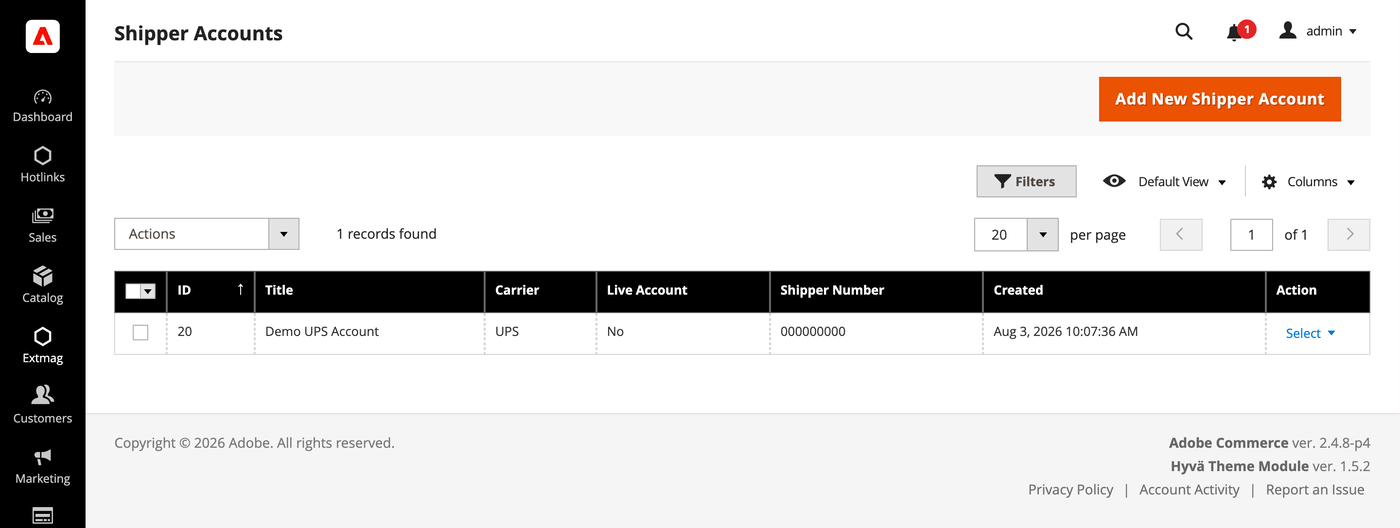
- Klik op de knop „Add New Shipper Account”.
- Vul uw inloggegevens in en klik op „Save”. Laat Live Account op No staan zolang u tegen de sandbox van de vervoerder test.
Adressen
- Ga naar Admin Main Menu -> Extmag -> Settings -> Addresses.
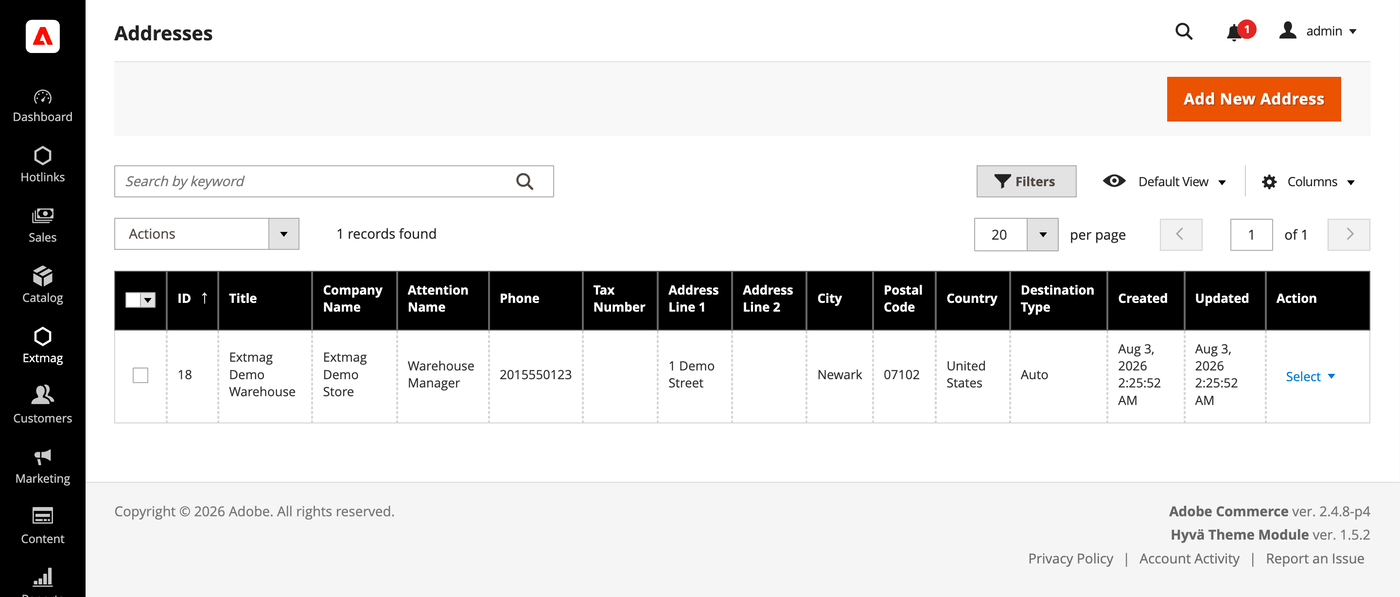
- Klik op de knop „Add New Address”.
- Vul bedrijfsnaam, contactpersoon, telefoon en het volledige adres in en klik op „Save”. Voeg één adres per verzendlocatie toe — het factuuradres en het verzendadres worden apart gekozen.
Verpakkingsdozen
- Ga naar Admin Main Menu -> Extmag -> Settings -> Package Boxes.
- Klik op de knop „Add New Box”.
- Vul de binnen- en buitenmaten, het leeggewicht en de maximale belading in en klik op „Save”. De inpakker verdeelt een bestelling over pakketten aan de hand van deze dozen: hoe meer van uw echte dozen zijn vastgelegd, hoe dichter het getoonde tarief bij het gefactureerde ligt.
Verzendmethoden
- Ga naar Admin Main Menu -> Extmag -> Shipping Methods.
- Klik op de knop „Add New Shipping Method”.
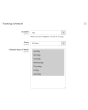
- Kies UPS als vervoerder, bepaal welke van zijn diensten worden getoond — alle, een specifieke lijst, of alleen de goedkoopste of duurste — en beperk de methode zo nodig per website en klantgroep. Klik op „Save”.
Configuratie
- Ga naar Admin Main Menu -> Extmag -> Settings -> UPS Configuration.
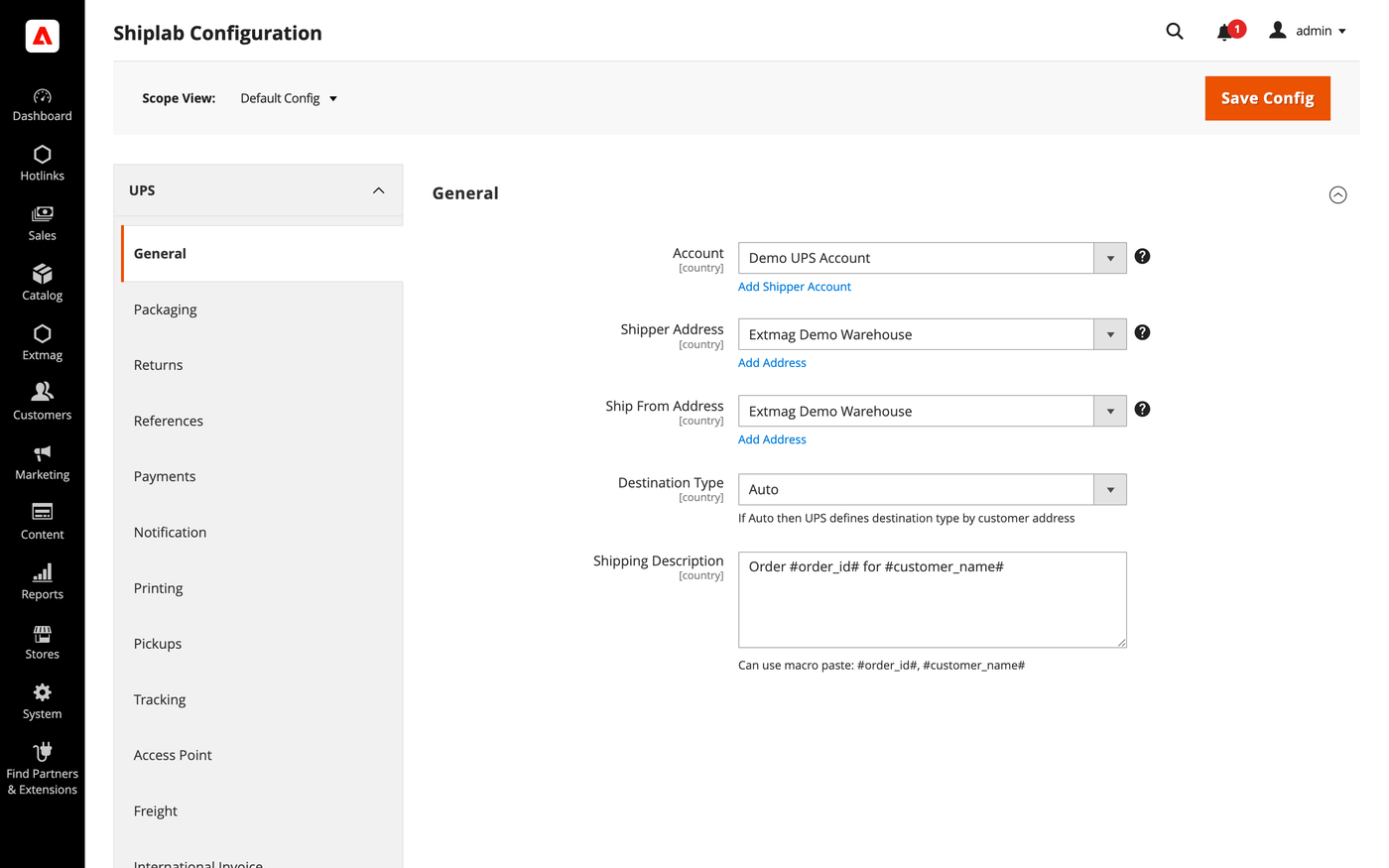
- Open eerst het tabblad General en kies het verzendersaccount, het factuuradres en het verzendadres die u hierboven heeft aangemaakt.
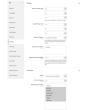
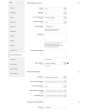
- Werk de overige tabbladen door en vul in wat op uw account van toepassing is.
De tabbladen behandelen:
- General — account, adressen, type bestemming, standaardverzendmethode en verzendinstructies.
- Packaging — verpakkingstype, afmetingen en de verdeling van een bestelling over pakketten.
- Returns — retourlabels en RMA-afhandeling.
- References — de referentienummers op het label en hun barcodes.
- Payments — wie de zending en de rechten betaalt, en de accountgegevens van de betaler.
- Notification — de gebeurtenissen waarover de vervoerder bericht en de ontvangers.
- Printing — documentformaten en de printer per documenttype.
- Pickups — of ophalingen automatisch worden geboekt na het aanmaken van een label of met de hand worden ingepland.
- Tracking — hoe vaak pakketten worden bevraagd en hoe statussen terug in de bestelling worden geschreven.
- Access Point — bezorging op een UPS Access Point in plaats van op een adres, met de bijbehorende meldingen.
- Freight — zendingen vanaf 150 lbs, met eigen handling units en vrachtklasse.
- International Invoice — de papierloze handelsfactuur, de handtekeningafbeelding en de douane-inhoud.
- Automatic — wanneer labels zonder tussenkomst worden aangemaakt.
- Mass Actions — labels in bulk aanmaken vanuit het besteloverzicht.
- Manual Actions — één label aanmaken vanuit een bestelling.
- Other Options — logging en de overige schakelaars op vervoerdersniveau.
Elke instelling kan per website en per land van bestemming worden toegepast, zodat een regel die alleen voor één markt zin heeft de rest niet raakt.
De volledige naslag per veld, met de exacte configuratiepaden, staat in de Reference Manual die bij de extensie wordt geleverd.
3.9.3
Logged the UPS Locator API response via DataSave for diagnostics. Refreshed the Installation Guide, User Guide, and Reference Manual.
3.9.2
Replaced $block->escapeHtmlAttr calls with injected Escaper in Access Point admin button template. Refactored access-point locator iframe to load map JS externally for CSP compatibility and whitelisted Bing Maps hosts. Shiplab: Replace raw filesystem calls in settings import with Magento file driver.
3.9.1
Replaced $block->escapeHtmlAttr calls with injected Escaper in Access Point admin button template. Refactored access-point locator iframe to load map JS externally for CSP compatibility and whitelisted Bing Maps hosts. Shiplab: Replace raw filesystem calls in settings import with Magento file driver.
3.9.0
Shiplab: Added zero-weight guard and weight diagnostics for shipping rate calculation. Shiplab: Removed legacy Additional Price fields and migrated data to price rules.
3.8.9
Replaced multiselect with category chooser for dangerous goods product categories field. Shiplab: Replaced multiselect categories with AJAX tree chooser in dimension config. Added support Magento 2.4.9 and Adobe Commerce 2.4.9
3.8.8
Shiplab: Fixed attribute ID retrieval order in category EAV setup patch.
3.8.7
Shiplab: Added response post-processing hook and fixed logo data handling.
3.8.6
Shiplab: Added BlackoutRules feature with full CRUD, date picker mixin, and schedule migration.
3.8.5
Fixed service array initialization in Rate response parser to prevent data leakage between loop iterations. Shiplab: Fixed null safety issues and added numeric attribute validation. Added support Magento 2.4.8-p4 and Adobe Commerce 2.4.8-p4
3.8.4
Fixed service code resolution to preserve value set during step three.
3.8.3
Optimized the algorithms for packing items into boxes to ensure better efficiency.
3.8.2
Added email field to addresses and new macros for shipping description.
Added custom address attribute support and fixed config value handling.
Refactored AttributesOfCustomerAddress to use CollectionFactory.
Fixed duplicate Access Point creation by checking existing records before save.
3.8.1
Fixed bundle product handling for Ship Separately/Together and price/weight types.
Added config option to include zero-price bundle children in international invoices.
Fixed property type declarations for PHP 8.x compatibility.
3.8.0
Fixed loadedData check in DataProvider classes for PHP 8.x compatibility.
Fixed place order callback to pass data for proper Braintree payment handling.
3.7.9
Refactored code.
3.7.8
Added support for PHP 8.4
3.7.7
Fixed an issue with saving the Access Point address.
3.7.6
Added support Magento 2.4.8-p3 and Adobe Commerce 2.4.8-p3
3.7.5
Fixed a bug with the country code for Kosovo
3.7.4
Added support Magento 2.4.8-p2 and Adobe Commerce 2.4.8-p2
3.7.3
Fixed a bug with the Schedule New Update form on the category page
3.7.2
Fixed the discount price for the International invoice
3.7.1
Added the selected Access Point display to the checkout payment step.
3.7.0
Fixed a bug with the field City and the Access Point popup in the checkout page
3.6.9
Fixed the PhoneNumber field for UPS Location API
3.6.8
Fixed Distance Unit Of Measurement for the UPS Access Point
Added support Magento 2.4.8-p1 and Adobe Commerce 2.4.8-p1
Update the UPS API version in the module
Fixed QV Notification Services with new UPS API version
3.6.7
Added support Magento 2.4.8 and Adobe Commerce 2.4.8
3.6.6
Fixed a bug when the order has only virtual products
3.6.5
Added support Magento 2.4.7-p5 and Adobe Commerce 2.4.7-p5
3.6.4
Added support Magento 2.4.7-p4 and Adobe Commerce 2.4.7-p4
3.6.3
Fixed a bug with UPS Access Point Locator with non-UPS shipping methods
3.6.2
Fixed a bug with the Access Point Locator when the Drop Location is not an array
3.6.1
Fixed a bug with an empty Access Point country code
3.6.0
Fixed a bug with SplitButton for the order view page in the admin panel
3.5.9
Fixed logs for shipping rates
Added support Magento 2.4.7-p3 and Adobe Commerce 2.4.7-p3
3.5.8
Fixed the price format on the label creation page in the admin panel.
Improved the integration with the Hyva Theme.
3.5.7
Fixed formattedAccessPointAddress in email templates for Access Point
3.5.6
Added email templates for Access Point address.
Fixed Tracking.php. Fixed logs with config_snapshot.
Fixed zero baseSubTotal.
3.5.5
Fixed a bug with division by zero
3.5.4
Fixed a bug with the StateProvince code for the pickup location
3.5.3
Fixed a bug with a recursive function for shipping rates
3.5.2
Fixed a bug with shipping rates debugging.
Fixed CSP for printing by websocket.
3.5.1
Fixed bug with the deactivating module
3.5.0
Fixed bug with afterGetAPIUrl plugin
3.4.9
Fixed the z-index issue on the label details page.
Added support Magento 2.4.7-p2 and Adobe Commerce 2.4.7-p2
3.4.8
Fixed the z-index issue on the label details page.
Added support Magento 2.4.7-p2 and Adobe Commerce 2.4.7-p2
3.4.7
Fixed bug with Saturday Delivery
3.4.6
Removed polyfill javascript library for Google Maps
3.4.5
Added support Magento 2.4.7-p1 and Adobe Commerce 2.4.7-p1
3.4.4
Fixed cache for shipping rates
3.4.3
Fixed Locator API URL for the sandbox mode
3.4.2
The issue with printing return labels on the customer side has been fixed.
3.4.1
Fixed the packaging box selector
3.4.0
Fixed calculation of the estimated value of a parcel including a discount, which caused the error "Missing or Invalid Monetary Value of Commodity 1's Commodity Value"
3.3.9
Fixed the Origination Names
3.3.8
The issue related to the customer group and guest order creation in the admin panel has been fixed
3.3.7
Fixed bug with empty shipping method name
3.3.6
Added support Magento 2.4.7 and Adobe Commerce 2.4.7
3.3.5
Integration with Hyva Theme and Hyva Checkout has been added
3.3.4
Fixed the bug with OAuth token and Freight Rates
3.3.3
Added support Magento 2.4.6-p4 and Adobe Commerce 2.4.6-p4
3.3.2
Improve cache for the shipping rate request
3.3.1
Improve the speed of calculating rules
3.3.0
Fixed the JS bug with placing the order
3.2.9
Fixed a bug that occurred when mass-creating delivery labels
3.2.8
Fixed the bug with the commodity code for the International Invoice
3.2.7
Added messages for errors in saving shipping labels
3.2.6
Fixed the Carbon Neutral indicator
3.2.5
Fixed the bug with configuration and printing_character_set option
3.2.4
Updated linked modules
3.2.3
Added the ability to rename original courier shipping methods
3.2.2
Updated CSP politics for the UPS Access Point popup
3.2.1
Added support Magento 2.4.6-p3 and Adobe Commerce 2.4.6-p3
3.2.0
Added Google and Bing maps to the UPS Access Point popup.
3.1.4
Integrated the UPS Access Point in the IOSC Onestepcheckout module
3.1.3
Integrated the UPS Access Point in the IOSC Onestepcheckout module
3.1.2
Fixed the packer for packages of the shipment
3.1.1
Fixed a bug with downloading shipping logs
3.1.0
Fixed the data type of the Service Code
3.0.9
Added two options "Show Method if Not Applicable" and "Displayed Error Message" in the Extmag Shipping method configuration
3.0.8
Fixed bug with shipper_tax_number field in the UPS shipping method configuration
3.0.7
Set packaging type code by default in configuration with module installation
Fixed a bug when it was impossible to save the Shiplab configuration in Magento 2.4.6-p1
3.0.6
Fixed PDP printing with the QZ Tray program
3.0.5
Support the QZ Tray program for printing labels.
3.0.4
Fixed bug with Sales Rules.
Removed deprecated code.
3.0.3
Fixed sources for orders after saving the tracking number
Added support Magento 2.4.6-p2 and Adobe Commerce 2.4.6-p2
3.0.2
Added logging for OAuth generating token
3.0.1
Fixed calculating prices for shipping methods.
Fixed shipping price rules.
3.0.0
Added support for UPS API OAuth 2.0
Fixed minor bugs
2.8.7
Improved selection of Websites and Customer Groups for Shipping Methods
2.8.6
Fixed bugs of Access Point on the checkout page of the admin panel
2.8.5
Fixed Top Text for UPS Access Point popup on checkout page
2.8.4
Fixed shipping rates for UPS Access Points
Added top text for Access Point popup
2.8.3
Added support Adobe Commerce 2.4.6-p1
2.8.2
Added the functionality of substituting the default address for the country if the customer entered an incorrect delivery address.
2.8.1
Added the integration of the UPS Access Point with the BSS OneStepCheckout extension
2.8.0
Fix bug with musltiselect fields and values as type integer
2.7.9
Added the new buttons to the Shipping Label view page. These buttons lead to the corresponding shipping and order pages.
2.7.8
Fixed bug with calculating discount and tax for shipping rates
2.7.7
Fixed bug with the Volume Weight switcher
2.7.6
Support PHP 8.1
Improved supporting Adobe Commerce (Magento) 2.4.6
2.7.5
Support Adobe Commerce (Magento) 2.4.6
Fixed bug with the type of variables
2.7.4
Fixed some bugs to support PHP 8.1
2.7.3
Added max volumetric weight for a package.
Added type of volumetric weight value.
Fixed some bugs with volumetric weight.
2.7.2
Fixed a bug with the volumetric weight
2.7.1
Updated dependencies.
Fixed some minor bugs.
2.7.0
Added support for Product Volumetric Weight
2.6.3
Fixed the PHP warnings
2.6.2
Support Adobe Commerce (Magento) 2.4.5-p1
2.6.1
Fixed country_id condition type for shipping method rules
2.6.0
Fixed a few bugs linked with PHP 8.1
Added "Additional Price Actions" for applying multiple rules for the shipping method.
2.5.5
Support Magento 2.4.4
2.5.4
Added carrier logo to shipping methods.
Fixed some bugs.
Support PHP 8
2.5.3
Added carrier logo to shipping methods.
Fixed some bugs.
2.5.2
Improve PHP code.
Removed json_request_data field from the form of creating labels
2.5.1
Fixed js for the form of step two
2.5.0
Go to subscription
2.4.0
Change the display of prices with and without duties and taxes
2.3.0-2.3.4
Sending email with creating return labels and added a new email template
Changed code for compatibility PHP version 7.4 and high
Changed UPS Access Point popup
Added Freight Shipping
Added Custom UPS Access Point popup
2.2.0
By default, the address specified in the store settings is used, if the address is not created and selected in the extension settings.
When deleting a label, its tracking number is also removed from the order and shipping.
If the product is configurable, then the name of its child is used for the international invoice.
Added the ability to enable the use of a direct link to the carrier's website to receive tracking information in the admin panel and in letters sent to customers.
For international invoices, added the ability to specify the Discount / Rebate amount.
2.0.0-2.1.0
Added the ability to control the display of shipping methods by date, time of day, and days of the week.
Added the ability to download log files from the log list page.
Added EORI Number
1.3.0-1.9.0
The new option "Allowed areas" was added. It shows the shipping method in admin only
Added "country from" and "country to" in the Directions column on the labels grid page
Added Consignee VAT/Tax/EORI ID
Support UK Brexit
Added links to order, shipment, creditmemo, and user account in the grid of shipping labels
Added the Create a new label item in the Action column to the grid of shipping labels, which allows you to create another shipping label for the same order and shipment
Added dependency from Core module
Fixed bug with system configuration
Fixed bug with access control list
Fixed access control list and admin menu
Added additional print button on order and shipment page in admin
Added PHP library textalk/websocket.
Added print by the network.
Added auto print.
