
Canada Post Universal Shipping for Magento® 2.x
First year. Renews at $119.00/year afterwards.
Free for 30 days, then $99 a year. Cancel any time in your account; you keep printing until the period you have paid for runs out.
Canada Post Universal Shipping is a Magento 2 extension that helps you manage a complete Canada Post shipping cycle using the Canada Post API.
Canada Post is Canada’s national postal service, delivering to every address in the country and to more than 190 destinations worldwide. The extension connects your store to that network end to end — live rates at checkout, labels and customs paperwork from the admin, tracking, cancellations, returns, pickups and end-of-day manifests.
The main benefits of the Canada Post Universal Shipping extension are:
PDF and Thermal Shipping Labels
The creation of shipping labels is possible manually, in bulk from the Orders grid, automatically, and even on a schedule. The extension associates each shipping label with an order, shipment, or credit memo. All labels are stored on your server and you can access them at any time from the admin interface of your Magento site.
Before manually creating each shipping label, you can select the Canada Post service you want and immediately see the shipping cost. In automatic mode, labels are created either according to the method that the buyer chose when ordering, or according to a domestic and international service you configure. Labels come back as PDF in 8.5x11, 4x6 and 3x5, or as ZPL for thermal printers.
Shipping Rates & Shipping Methods
Get shipping rates on checkout just like on canadapost.ca. Shipping prices depend on the origin and destination postal codes, weight, dimensions, destination type and the active delivery options — all of these points are taken into account by our Canada Post Universal Shipping extension. Quotes are cached for an interval you set, so a busy checkout does not re-ask the carrier for the same cart. The cost of the method can be both static and dynamic, and both prices and display methods can be adjusted by setting limits. You can create as many methods as you like. Read more here.
Contract and Non-Contract Accounts
A commercial contract number unlocks negotiated rates, on-account billing, manifests and Open Returns. Merchants without one can still rate and ship: the extension switches to the non-contract endpoint and each label is settled per shipment. Payments for delivery are settled with Canada Post only — the extension does not charge for shipping, labels, or rate calls.
Returns
Two return flows, both native to Canada Post. An Authorized Return issues one label per parcel, with your address as the receiver. An Open Return is a standing template the store draws labels from until its budget is spent — create it from the Returns settings with one button and the extension stores the template ID for you. Customers can request a return label from their account area, and it arrives by email in a template you control.
Pickup and Tracking
Order a parcel pickup directly from the admin panel of your online store — on demand for a specific window, or on a standing weekly schedule. Availability for a postal code can be checked before booking, and a booked pickup can be cancelled again.
Once your packages have been shipped, you can track them with our Canada Post Universal Shipping extension. You can see all the points that the package has passed and where it is at the moment, either in a popup inside Magento or on the Canada Post website, and the tracking number travels with the order email.
Manifests
Contract merchants can hold shipments in a group and transmit them once at the end of the day instead of one at a time. Close out manually from the admin or leave it to the cron; the manifest PDF Canada Post produces is downloaded and stored next to the labels, and the PO number the driver signs for is recorded on every label in the group.
Customs and International
Customs declarations for international labels are built from the order’s invoice products. Reason for export, customs currency, prepaid duties, export licence and certificate numbers, IOSS registration for the EU and the AES declaration for the United States are all configurable, and a separate sold-to party can be sent when it differs from the consignee.
Post Office Locator
Let the buyer choose an outlet to collect the parcel from. The locator searches around the delivery postal code within a radius you set and shows the results as a list or on a Google or Bing map. The chosen outlet is carried through to the label as a hold-for-pickup delivery.
Printing
Printing is one of the most important steps when working with shipping labels. Use our app to print PDF and thermal labels on your local and network printers. You can get it here. Each document type — shipping label, packing slip, invoice — can be routed to its own printer.
Configuration
The capabilities of our module are truly limitless due to flexible settings. At the same time, the settings are intuitive and many are set by default. You can configure the extension for a specific store or a specific country. You can apply some settings to domestic shipments, and apply other settings to foreign shipments. Separate settings are also possible for regular and return labels.
What you need
An account with the Canada Post Developer Program, which issues an API key and ties it to your customer number, and a Canadian origin address — Canada Post ships from Canada.
Demo
You can try this extension for 30 days. Ask for the demo on this page with Request demo; how it works is explained on Try an extension for 30 days.
Hyva Theme and Hyva Checkout
Compatible with Hyva Theme and Hyva Checkout
| CMS | Magento 2 |
|---|---|
| Compatibility | 2.4, 2.3 |
| Features |
|
The extension is installed with Composer. Which repository you add depends on where you bought it — the install itself is the same either way.
1. Connect the repository
Bought on extmag.com. Your account page shows the repository address and your personal credentials, together with the two composer config commands to paste. Run them once per project; every extension you own is then available from the same repository.
Bought on the Adobe Commerce Marketplace. The package is served from repo.magento.com, which most stores already have configured. If not, add the access keys from your Adobe account under My Profile -> Access Keys.
2. Install the extension
Run in the project root:
composer require extmag/canadapostshipping
php bin/magento setup:upgrade
php bin/magento setup:di:compile
php bin/magento cache:flush
Composer resolves the shared Extmag packages the extension depends on, so there is nothing else to require by hand.
Log out and log back into the admin, and the extension is ready.
3. Get your Canada Post credentials
Register with the Canada Post Developer Program. Registration issues an API key — a username and password pair — and ties it to your customer number. Canada Post issues two separate keys, one for the development gateway and one for production; they are not interchangeable. Keep a shipper account for each and switch between them with the Live Account switch on the account form.
A commercial contract number is optional: without one the extension still rates and ships, on published rates and with the shipment settled per label. On-account billing, manifests and Open Returns are contract-only.
Requirements
- Magento 2.4.x (Open Source or Adobe Commerce)
- PHP 8.1 or newer, Composer 2.x
- A Canada Post Developer Program API key and customer number
- A Canadian origin address — Canada Post ships from Canada
- Outbound HTTPS access to
soa-gw.canadapost.caandct.soa-gw.canadapost.ca
Cron
The extension registers one hourly job that closes out manifest groups when the manifest strategy is set to the daily cron. Under the default strategy every shipment is transmitted as it is created and the job exits immediately. Magento cron has to be running for the scheduled variant to close out anything.
Label printing
To print labels on a local or network printer, install our printing software from here, then follow Installing and configuring el-Print.
Hyva Theme and Hyva Checkout
Storefronts on Hyva need one more package:
composer require extmag/shiplab-hyva
composer require magewirephp/magewire
The integration replaces one Hyva template, view/frontend/templates/checkout/shipping/method-list.phtml. If your theme already overrides that file, merge the changes rather than replacing it.
Trying it before you buy
You can ask for a 30-day demo of this extension and install it exactly as above — same package, same repository, same commands. How demos work.
Installing without Composer
The archive can be unpacked into app/code/Extmag/ instead, but that leaves the extension outside dependency management: its shared packages have to be installed by hand and updates never reach it. Use Composer for any store you run, demo included.
For any question about the installation, please contact our technical support.
Canada Post is set up from the Extmag menu in the Adobe Commerce (Magento) admin. Add the carrier account, the Canadian address you ship from, the boxes you pack into and the shipping methods customers see, then tune the carrier configuration.
Canada Post Account
- If you do not have Canada Post API credentials yet, register with the Canada Post Developer Program. Registration issues an API key — a username and a secret — and ties it to your customer number.
- Go to Admin Main Menu -> Extmag -> Shipper Accounts.
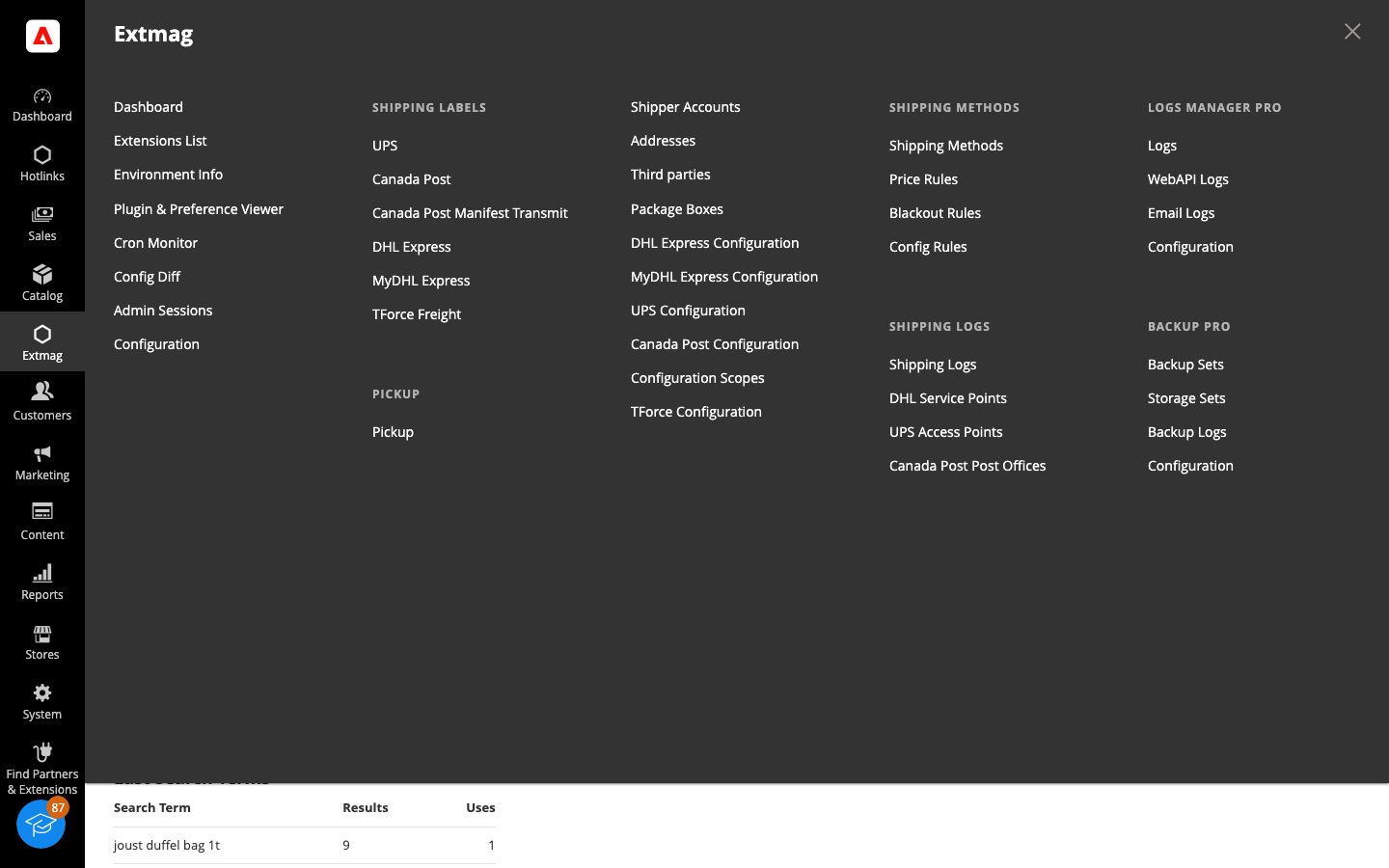
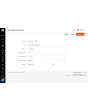
- Click the “Add New Shipper Account” button.
- Pick Canada Post as the carrier, enter the API key username, the secret and your customer number as the Shipper Number, then click “Save”.
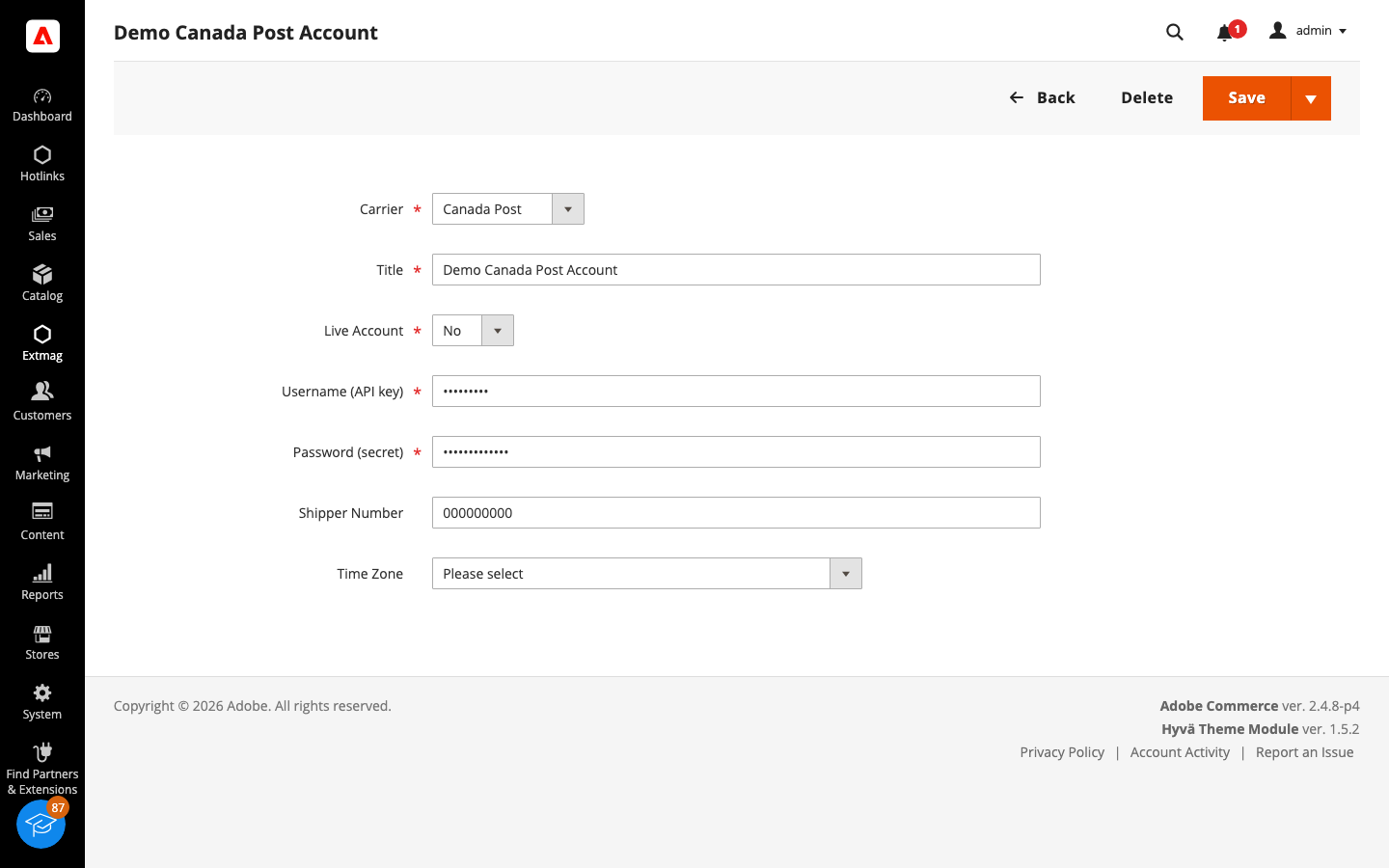 Leave Live Account set to No while you test — Canada Post issues separate keys for the development and the production gateway, and they are not interchangeable. Keep one account per key and switch between them in the configuration.
Addresses
- Go to Admin Main Menu -> Extmag -> Settings -> Addresses.
- Click the “Add New Address” button.
- Fill in the company name, contact, phone and full address, then click “Save”. The origin has to be Canadian — Canada Post ships from Canada — with a real two-letter province code and a postal code in the A1A1A1 form. Two addresses are used per carrier: the Shipper Address printed on the label, and the Ship From Address where the parcel is collected, which is also the manifest shipping point when the two differ.
Package Boxes
- Go to Admin Main Menu -> Extmag -> Settings -> Package Boxes.
- Click the “Add New Box” button.
- Enter the inner and outer dimensions, the empty weight and the maximum load, then click “Save”. The packer uses these boxes to work out how an order is split across packages, so the more of your real boxes are listed the closer the quoted rate is to what you are charged. Canada Post accepts up to 30 kg per parcel.
Shipping Methods
- Go to Admin Main Menu -> Extmag -> Shipping Methods.
- Click the “Add New Shipping Method” button.
- Choose Canada Post as the carrier, decide which of its services to show — all of them, a specific list, or only the cheapest or the most expensive — and restrict the method by website and customer group if you need to. Click “Save”.
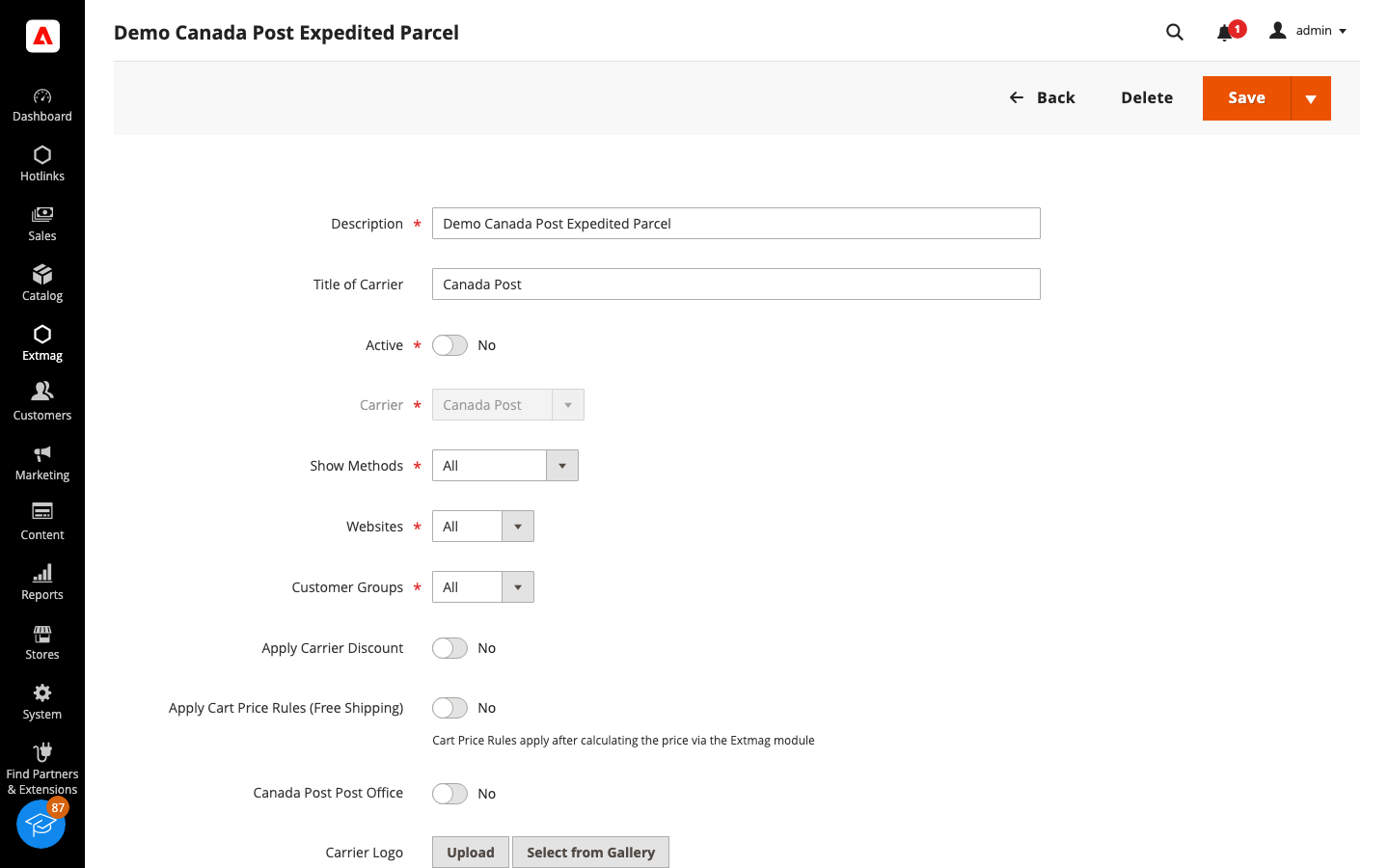 The service list is filtered by the origin country, so a Canadian origin offers the domestic, United States and international groups.
Configuration
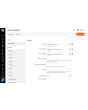
- Go to Admin Main Menu -> Extmag -> Settings -> Canada Post Configuration.
- Open the General tab first and select the shipper account, the shipper address and the ship-from address you created above. Add your commercial contract number if you have one — without it, rating and shipping fall back to published rates.
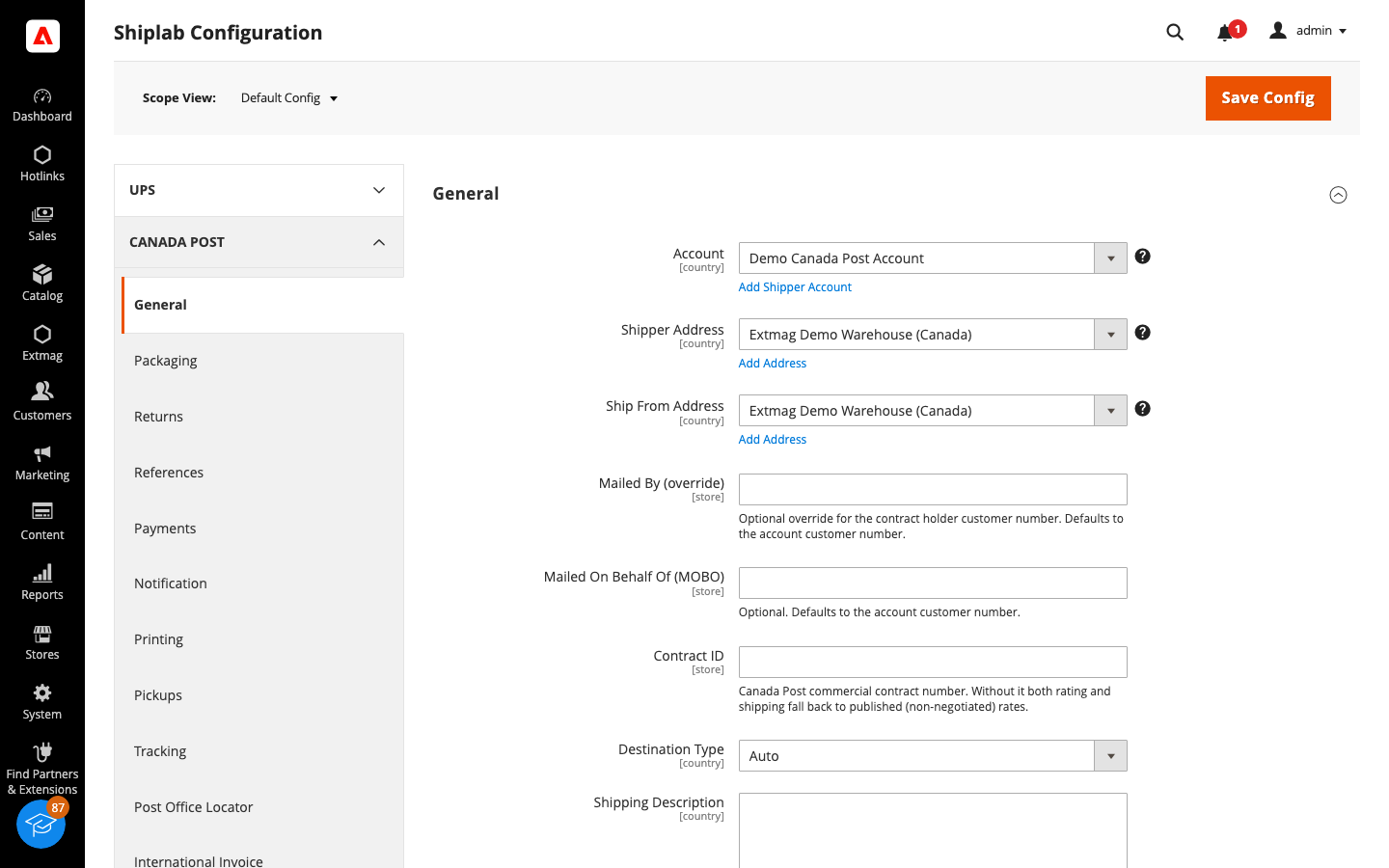
- Work through the remaining tabs, filling in what applies to your account.
The tabs cover:
- General — account, addresses, contract number, mailed-by and mailed-on-behalf-of customer numbers, destination type and the shipping description.
- Packaging — the weight and dimension units. Canada Post encodes the packaging in the service code and computes dimensional weight itself.
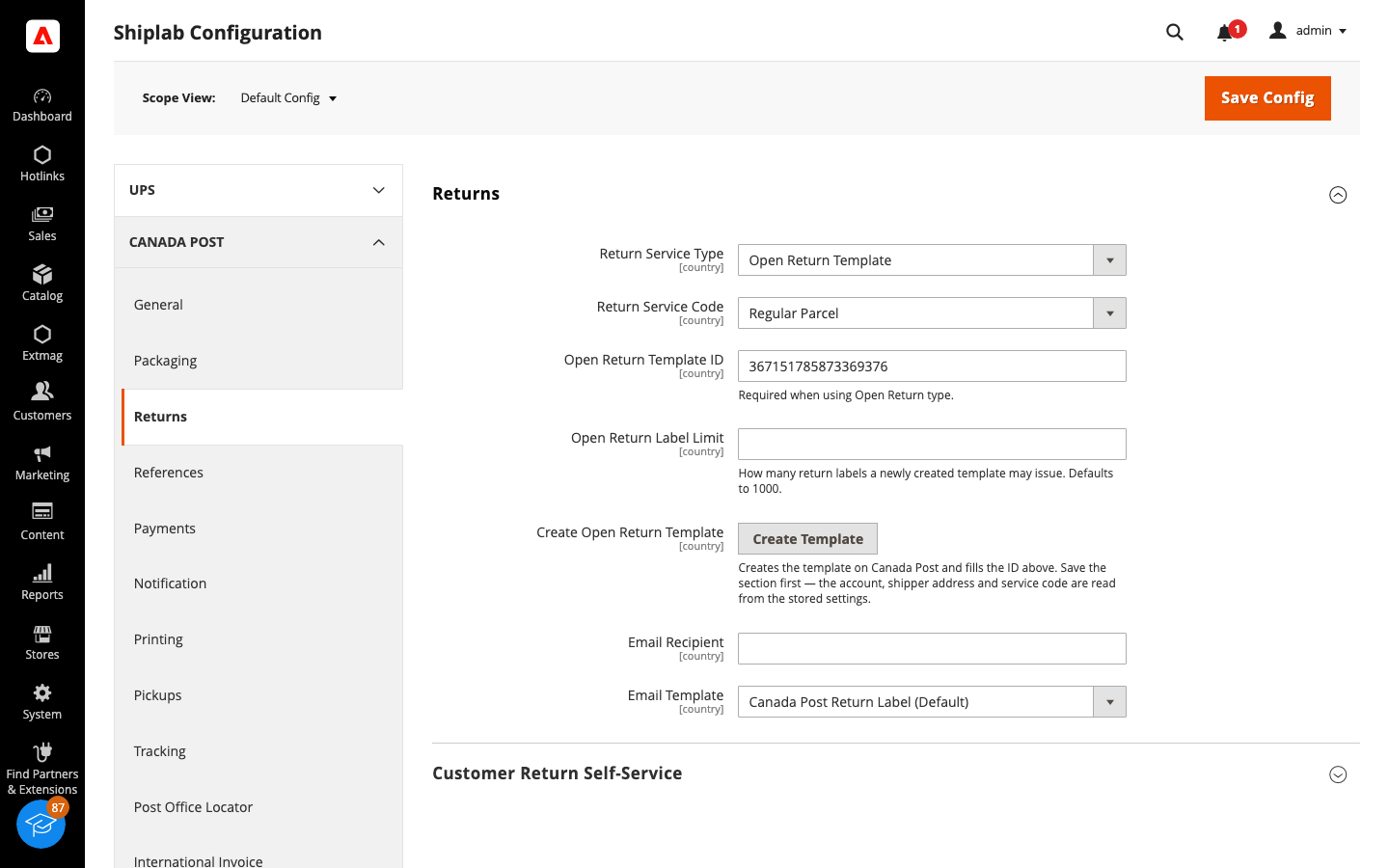
- Returns — Authorized Returns or Open Returns, the return service, the one-click Create Template button for an Open Return, the label budget, and what the customer may do from the account area.
- References — the cost centre and the two customer references written onto a contract shipment.
- Payments — currency, who pays the transportation and the duties, the method of payment, coverage, cash on delivery and the Zonos account key required for United States destinations.
- Notification — the events Canada Post emails about, their language and the recipients.
- Printing — paper size (8.5x11, 4x6, 3x5), PDF or ZPL encoding, and what is printed on the label.
- Pickups — how a pickup is billed, where the courier should go, the truck and dock flags, and the weekly schedule the cron books against.
- Tracking — whether tracking opens as a popup inside Magento or as a link to the Canada Post website.
- Post Office Locator — outlet pickup at checkout, the search radius, list or map display and the Google or Bing map key.
- International Invoice — the customs block: currency, reason for export, prepaid duties, licence and certificate numbers, IOSS registration, the United States declaration id and the sold-to party.
- Manifest / Closeout — transmit each shipment as it is created, close out by hand, or leave it to the daily cron, plus the address printed on the manifest.
- Automatic, Mass Actions and Manual Actions — when labels are created without an operator, in bulk from the order grid, or one at a time.
- Other Options — non-contract shipments, quote type, how long a rate is cached, the tracking number in the order email, non-delivery handling and the default delivery options.
Every setting can be applied per website, per direction and per destination country, so a rule that only makes sense for one market does not have to affect the rest.
Returns
The Returns tab decides which of the two Canada Post return flows the store uses. An Authorized Return issues one label per parcel. An Open Return is a standing template: press “Create Template” and the extension registers it with Canada Post and stores the template ID for you, then draws labels from it until its budget is spent. The same tab controls whether a customer may request or reprint a return label from the account area, and which email template carries it.
Shipping Labels
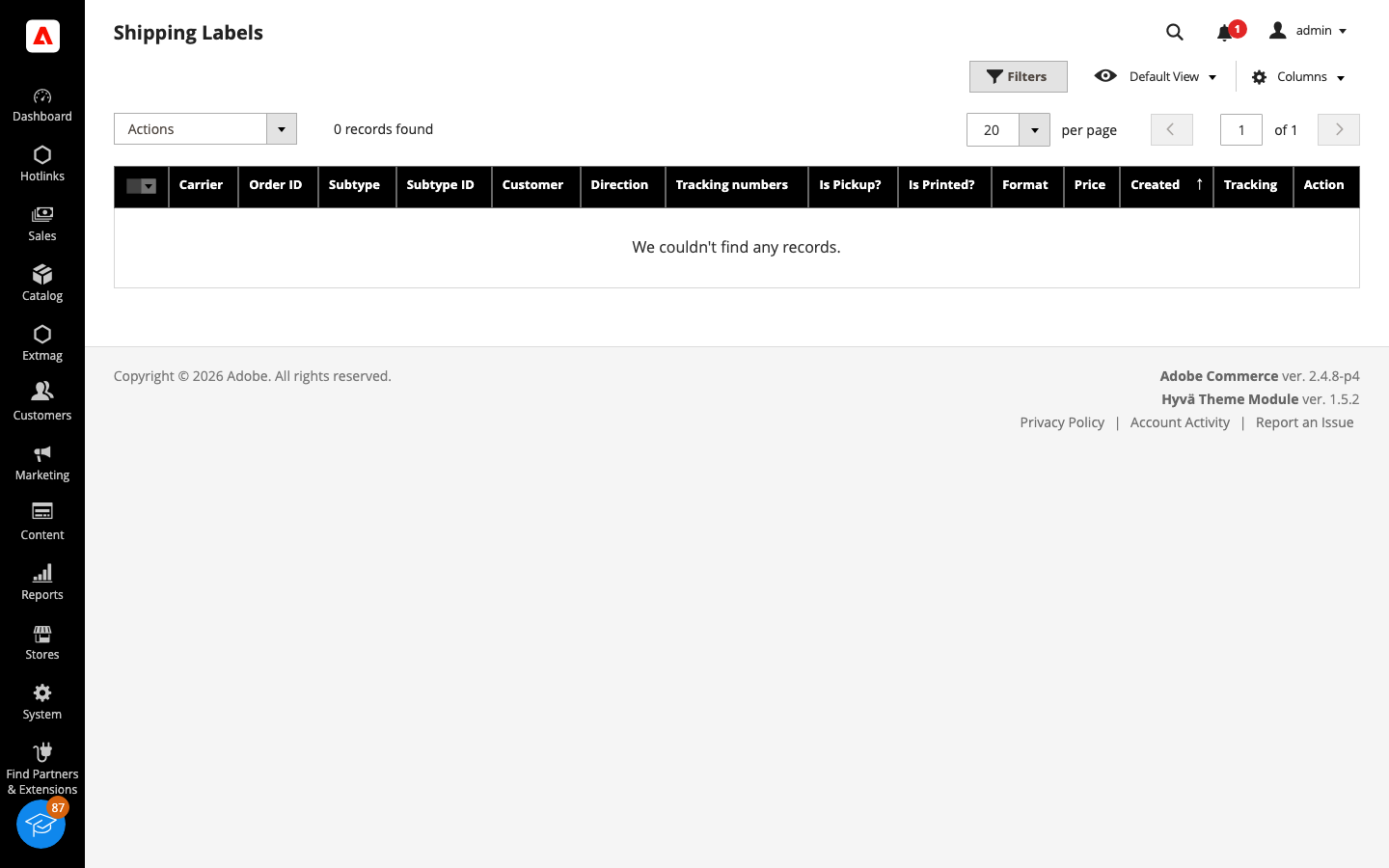
Once the carrier is configured, every label the store creates is listed under Admin Main Menu -> Extmag -> Shipping Labels -> Canada Post, with its tracking number, cost, manifest state and the documents attached to it. Labels are created from the order view, in bulk from the Orders grid, or automatically — the Automatic, Mass Actions and Manual Actions tabs decide which.
The full field-by-field reference, including the exact configuration paths, is in the Reference Manual supplied with the extension.


