
Admin-Assistent für Magento® 2.x

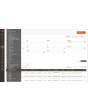
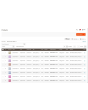
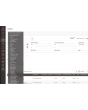


Der Admin-Assistent gibt den Menschen, die Ihren Shop betreiben, die Werkzeuge, die der Adobe Commerce (Magento) Admin nicht mitbringt: regelbasierte Suche in den Rastern, in denen Sie täglich arbeiten, Verknüpfungen zu den Seiten, die Sie ständig öffnen, und eine klare Antwort darauf, was installiert ist, was wo konfiguriert ist und was die Hintergrundaufgaben tun.
Eine Bestellung über ihren Inhalt finden, eine Einstellung über alle Store-Views hinweg prüfen, sehen, für welche Erweiterungen ein Update bereitliegt, feststellen, ob der Cron überhaupt gelaufen ist — dafür braucht es sonst einen Export, einen Bereichswechsel oder eine Nachricht an den Entwickler. Der Admin-Assistent beantwortet das im Admin-Bereich.
Jedes Werkzeug hat sein eigenes Zugriffsrecht, sodass eine Rolle die Raster ohne die Diagnose bekommen kann — oder umgekehrt.
Funktionen
Erweiterte Filter für Bestellungen, Rechnungen, Lieferungen, Gutschriften und Produkte
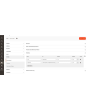
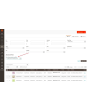
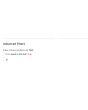
Gefiltert wird wie in einer Warenkorbregel: Bedingung hinzufügen, Attribut, Operator und Wert wählen und die Bedingungen mit ALLE oder BELIEBIGE verknüpfen. Die Bedingungen beschränken sich nicht auf die Spalten des Rasters.
In den Verkaufsrastern umfassen sie Summen, Menge und Gewicht, die Versandart, die vollständige Rechnungs- und Lieferadresse, Kundenname, E-Mail und Kundengruppe, Zahlungsart, Status und Store — dazu eine Produktattribut-Kombination, die eine Bestellung über ihren Inhalt trifft. „Bestellungen über einem Betrag, die ein Produkt dieser Marke enthalten und in dieses Land gehen“ ist eine Abfrage statt eines Exports mit Tabellenkalkulation.
Eine häufig gebaute Abfrage lässt sich als Voreinstellung speichern und mit einem Klick erneut anwenden. Jedes Raster wird einzeln aktiviert, und die Standardfilter von Magento können bleiben oder ausgeblendet werden, sobald die erweiterten da sind.
Dashboard
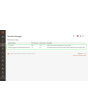
Eine Seite mit allen Werkzeugen der Erweiterung und ihrem Status, jeweils verlinkt. Eine praktische Startseite nach der Anmeldung und der schnellste Weg zu sehen, wie die Erweiterung auf einer Installation eingerichtet ist, die Sie noch nicht kennen.
Hotlinks
Schneller Zugriff auf die Admin-Seiten, die Sie ständig brauchen — Verkäufe → Zahlungsarten, ein bestimmter Konfigurationsbereich, ein Raster, in dem Sie leben. Legen Sie sie mit Titel und URL an, ordnen Sie sie, schalten Sie einzelne ab; sie erscheinen für alle in der Admin-Seitenleiste.
Auto-Hotlinks tun dasselbe ungefragt: Die Erweiterung zählt die Seiten, die jeder Admin-Benutzer besucht, und bietet dieser Person ihre meistbesuchten an, begrenzt auf die von Ihnen gesetzte Zahl.
Informationen zu installierten Erweiterungen
Jedes installierte Fremdpaket mit seiner aktuellen Version, der neuesten veröffentlichten und der Angabe, ob ein Update vorliegt. Keine SSH-Sitzung und kein Composer-Befehl, um „sind wir irgendwo hinterher“ zu beantworten.
Umgebungsinformationen
Version, Edition und Modus von Adobe Commerce (Magento); die PHP-Version, ihre Speicher- und Upload-Grenzen und die geladenen Erweiterungen; Datenbankgröße und Tabellenzahl; ob Redis und die Suchmaschine erreichbar sind; und wie viel Platz Log-, Cache-, Medien-, Static- und Generated-Ordner belegen. Genau die Seite, nach der eine Support-Anfrage zuerst fragt.
Cron-Monitor
Jede Aufgabe, die die Installation deklariert, mit Gruppe, Zeitplan-Ausdruck, letztem Status, letztem Lauf und Dauer sowie ihrer Lauf-Historie. Aufgaben lassen sich direkt aus dem Raster starten. Eine Aufgabe, die noch nie gelaufen ist, wird klar benannt — meist der schnellste Weg herauszufinden, dass der Cron nicht unter dem richtigen Benutzer läuft.
Konfigurations-Diff
Jeder Konfigurationspfad, den eine Website oder ein Store-View überschreibt, mit Bereich, dem dort geltenden Wert und dem Standard, von dem er abweicht. Nach einem Konfigurationsimport oder einer Migration ist das die Liste alles Nicht-Standardmäßigen auf einem Bildschirm.
Multistore-Konfiguration
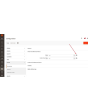
In der Konfiguration zeigt ein verwaltetes Feld ein kleines Symbol neben der Eingabe. Ein Klick darauf zeigt den Wert dieses Feldes in jedem Store der Installation — ohne Bereichswechsel, ohne sich durch die Websites zu klicken. Wer mehr als einen Store betreibt, spart damit Stunden.
Plugin- und Preference-Viewer
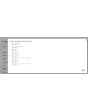
Welche Plugins eine Klasse abfangen, in welcher Sortierreihenfolge und an welchen Methoden, durchsuchbar nach Zielklasse, Plugin-Klasse oder Modul; und auf welche konkrete Klasse jedes Interface aufgelöst wird. Ein Filter zeigt nur die Methoden, die mehr als ein Plugin berührt — dort leben die Konflikte zwischen Erweiterungen.
Admin-Sitzungen
Jede Admin-Sitzung mit Benutzer, IP-Adresse, Status, Startzeit und letzter Aktivität sowie einer Aktion „Force Logout“, die eine Sitzung sofort beendet: Die nächste Anfrage aus diesem Browser landet auf der Anmeldeseite.
Index-Verwaltung
Das native Raster der Index-Verwaltung erhält einen Backlog-Zähler und den letzten Fehler je Indexer sowie eine Detailseite mit Lauf-Historie, Abhängigkeiten und zwei Steuerungen. Pause stoppt die geplanten Aktualisierungen eines Indexers vollständig; Throttle begrenzt sie auf einen Durchlauf je gewählter Minutenzahl. Beides ist für einen Massenimport oder eine Datenmigration gedacht — pausieren, was nicht mithalten muss, und am Ende einmal neu indexieren. Eine manuelle Neuindexierung läuft immer, unabhängig von der Sperre.
Kategorien-Grid
Der Kategorienbaum als flaches Raster: sortierbar, filterbar, mit Pfad, Ebene, Status, Position und aktueller Produktanzahl. Finden Sie Kategorien ohne Produkte, aktivieren Sie versehentlich deaktivierte wieder im Stapel, ändern Sie einen Namen direkt in der Zeile. Bei vielen Kategorien ist der Unterschied zur Baumansicht sofort spürbar.
Datenbanktabellen beim Entfernen von Erweiterungen erhalten
Wird ein Modul deaktiviert, löscht Adobe Commerce (Magento) seine Tabellen beim nächsten Upgrade. Der Admin-Assistent unterdrückt das, sodass ein für einen Nachmittag abgeschaltetes Modul nicht seine Daten mitnimmt. Tabellen werden nur entfernt, wenn ein Modul das ausdrücklich über eigene Data Patches verlangt.
Two-Factor Authentication aus dem Admin-Panel aktivieren/deaktivieren
Die Zwei-Faktor-Authentifizierung lässt sich aus der Konfiguration umgehen, getrennt für die Admin-Anmeldung und für die Erzeugung von API-Token, mit der Möglichkeit, die Umgehung im Entwicklermodus auszunehmen. Gedacht für einen Lasttest, eine wiederhergestellte Produktionskopie oder eine Installation, die bereits hinter einem Identitätsanbieter mit MFA liegt — nicht für einen öffentlichen Shop ohne einen solchen Schutz.
Logs Manager Pro
Das Modul Logs Manager Pro ist vollständig in den Admin-Assistenten integriert. Mit dem Kauf des Admin-Assistenten erhalten Sie alle Funktionen von Logs Manager Pro kostenlos.
Mehr über die Möglichkeiten von Logs Manager Pro finden Sie hier.
Backup Manager Pro
Das Modul Backup Manager Pro ist vollständig in den Admin-Assistenten integriert. Mit dem Kauf des Admin-Assistenten erhalten Sie alle Funktionen von Backup Manager Pro kostenlos.
Mehr über die Möglichkeiten von Backup Manager Pro finden Sie hier.
Demo
Sie können diese Erweiterung 30 Tage lang testen. Die Demo fordern Sie direkt auf dieser Seite über Demo anfordern an; wie das abläuft, steht unter Eine Erweiterung 30 Tage lang testen.
| CMS | Magento 2 |
|---|---|
| Kompatibilität | 2.4, 2.3 |
| Funktionen |
|
Die Erweiterung wird mit Composer installiert. Welches Repository Sie einbinden, hängt davon ab, wo Sie sie gekauft haben — die Installation selbst ist in beiden Fällen dieselbe.
1. Repository einbinden
Auf extmag.com gekauft. Ihre Kontoseite zeigt die Repository-Adresse und Ihre persönlichen Zugangsdaten samt den beiden composer config-Befehlen zum Einfügen. Führen Sie sie einmal pro Projekt aus; danach steht jede Erweiterung, die Sie besitzen, aus demselben Repository zur Verfügung.
Auf dem Adobe Commerce Marketplace gekauft. Das Paket wird von repo.magento.com ausgeliefert, das in den meisten Shops bereits eingerichtet ist. Falls nicht, tragen Sie die Access Keys aus Ihrem Adobe-Konto unter My Profile -> Access Keys ein.
2. Erweiterung installieren
Im Projektverzeichnis ausführen:
composer require extmag/improver
php bin/magento setup:upgrade
php bin/magento cache:flush
Composer löst die gemeinsam genutzten Extmag-Pakete auf, von denen die Erweiterung abhängt — von Hand ist nichts weiter zu fordern.
Melden Sie sich vom Admin ab und wieder an, dann ist die Erweiterung einsatzbereit.
Cloud-Speicher
Dropbox und Google Drive werden von der Erweiterung mitgeliefert. Für OneDrive wird ein zusätzliches Paket benötigt:
composer require krizalys/onedrive-php-sdk
Vor dem Kauf ausprobieren
Sie können eine 30-Tage-Demo dieser Erweiterung anfordern und sie genau wie oben installieren — gleiches Paket, gleiches Repository, gleiche Befehle. Wie Demos funktionieren.
Installation ohne Composer
Das Archiv lässt sich stattdessen nach app/code/Extmag/ entpacken, doch damit steht die Erweiterung außerhalb der Abhängigkeitsverwaltung: Ihre gemeinsam genutzten Pakete müssen von Hand installiert werden und Updates erreichen sie nie. Nutzen Sie für jeden Shop, den Sie betreiben, Composer — auch für die Demo.
Bei Fragen zur Installation wenden Sie sich bitte an unseren technischen Support.
-
User Guide User Guide.pdf · 1.3 MBHerunterladen
-
Reference Manual Reference Manual.pdf · 356.2 KBHerunterladen
-
Installation Guide Installation Guide.pdf · 230.0 KBHerunterladen
AdminWizard ergänzt den Adobe-Commerce-(Magento-)Admin um eine Reihe von Werkzeugen im Extmag-Menü. Die meisten arbeiten sofort nach der Installation; einzurichten sind nur die Raster, die erweiterte Filter erhalten, die Verknüpfungen in der Seitenleiste und die Frage, ob die Zwei-Faktor-Umgehung genutzt wird.
Dashboard
- Gehen Sie zu Admin Main Menu -> Extmag -> AdminWizard -> Dashboard.
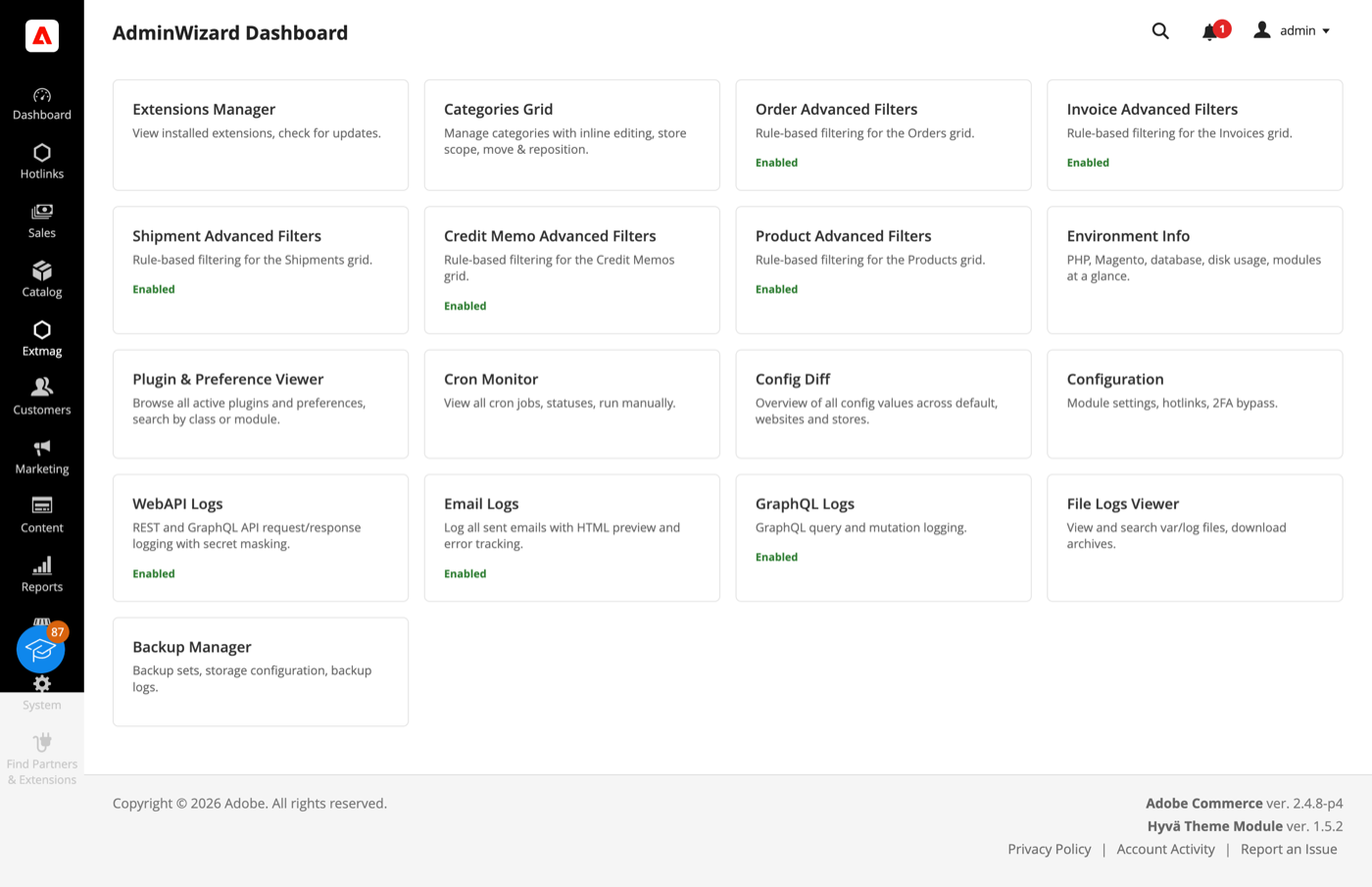
- Jedes Werkzeug ist eine Karte: eingeschaltete sagen das ausdrücklich, und jede öffnet ihre eigene Seite. Als Startseite nach dem Login praktisch — Zustand der Erweiterung und Zugang zu allem auf einem Bildschirm.
Das Dashboard führt auch die Werkzeuge aus Logs Manager Pro und Backup Manager Pro. Beide sind ohne Aufpreis in AdminWizard enthalten, ihre Karten sind also echt und keine Werbung.
Advanced Filters für Raster
- Öffnen Sie Sales -> Orders (oder Invoices, Shipments, Credit Memos beziehungsweise Catalog -> Products) und klicken Sie neben den Standardfiltern auf „Advanced Filters“.
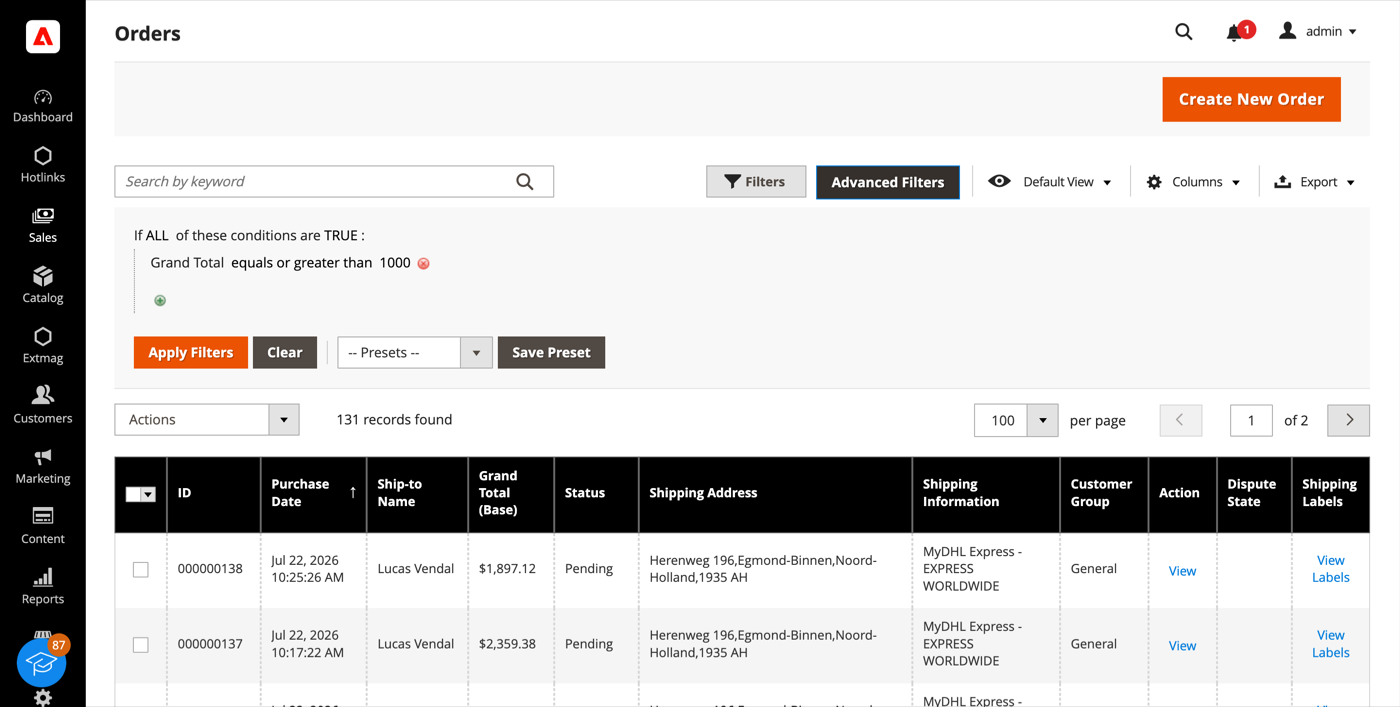
- Bauen Sie die Abfrage wie eine Warenkorbregel: Bedingung hinzufügen, Attribut, Operator und Wert wählen und die Bedingungen mit ALL / ANY verknüpfen.
- Klicken Sie auf „Apply Filters“. Das Raster lädt neu und zeigt nur die passenden Zeilen.
- Mit „Save Preset“ sichern Sie eine oft genutzte Abfrage; sie erscheint in der Liste Presets und ist beim nächsten Mal einen Klick entfernt.
Die Bedingungsliste beschränkt sich nicht auf die Spalten des Rasters. In den Verkaufsrastern deckt sie Summen, Mengen, Gewicht, Versandmethode, vollständige Rechnungs- und Lieferanschrift, Kundenname, E-Mail und Gruppe, Zahlungsmethode, Bestellstatus und Store ab — dazu eine Bedingung über Produktattribute, die eine Bestellung nach ihrem Inhalt trifft. „Bestellungen mit einem Produkt dieser Marke über diesem Preis“ ist eine einzige Bedingung und kein Export mit Tabellenkalkulation.
Extensions List und Environment Info
- Gehen Sie zu Admin Main Menu -> Extmag -> AdminWizard -> Extensions List.
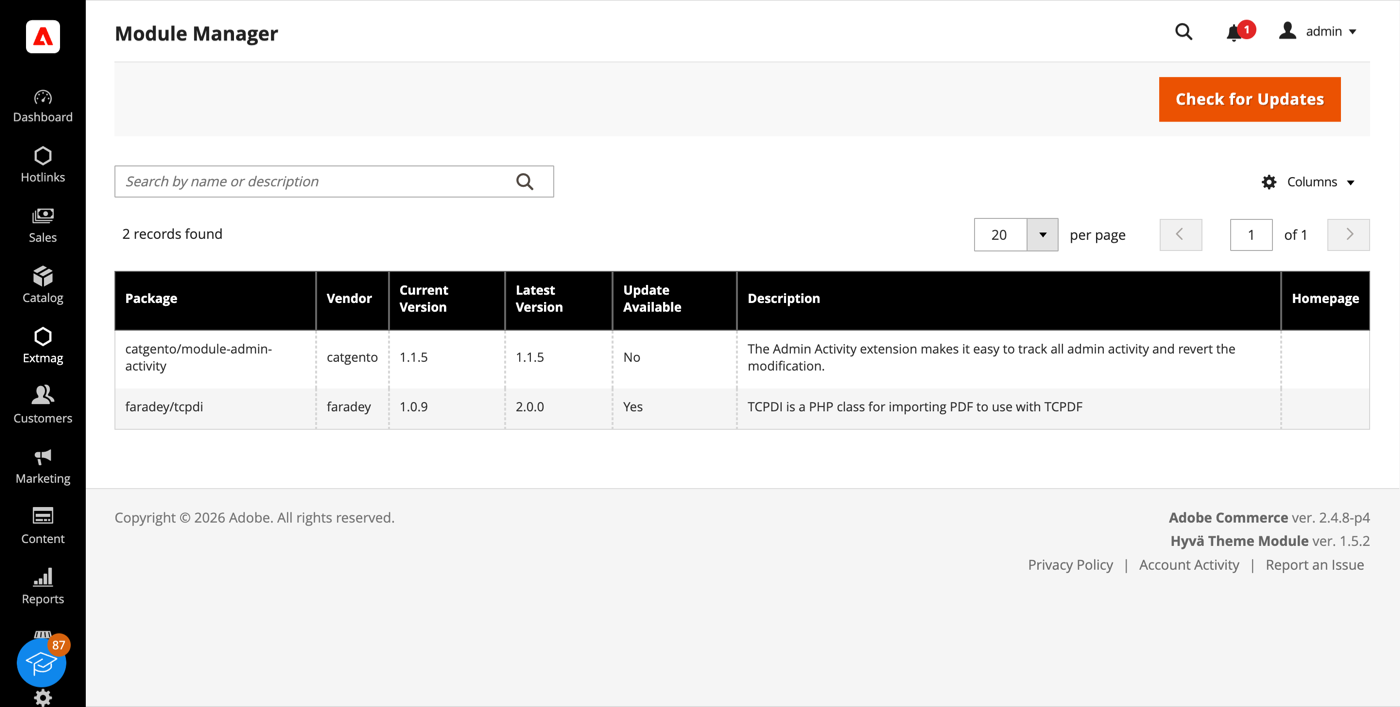
- Klicken Sie auf „Check for Updates“. Das Raster zeigt jedes installierte Fremdpaket mit aktueller Version, neuester veröffentlichter Version und der Angabe, ob ein Update vorliegt.
- Environment Info im selben Menü liefert den Rest des Bildes: Magento-Version, Edition und Modus, PHP-Version samt Limits, geladene Erweiterungen, Datenbankgröße und Tabellenzahl, Zustand von Redis und Suchmaschine sowie den Platzbedarf der Ordner für Logs, Cache, Media, Static und Generated.
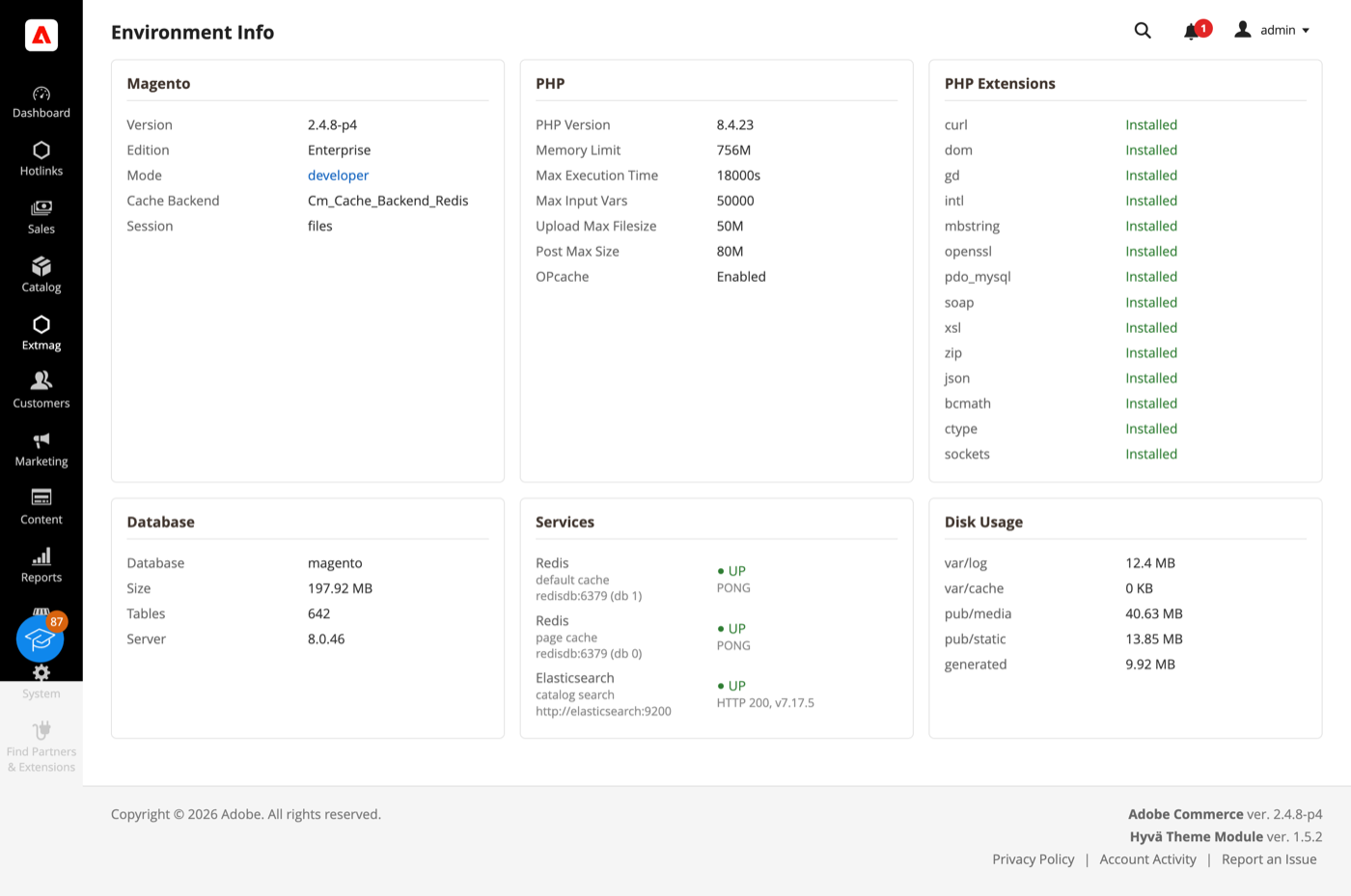
Beide Seiten beantworten die Fragen, mit denen eine Supportanfrage üblicherweise beginnt — ohne SSH-Sitzung.
Cron Monitor
- Gehen Sie zu Admin Main Menu -> Extmag -> AdminWizard -> Cron Monitor.
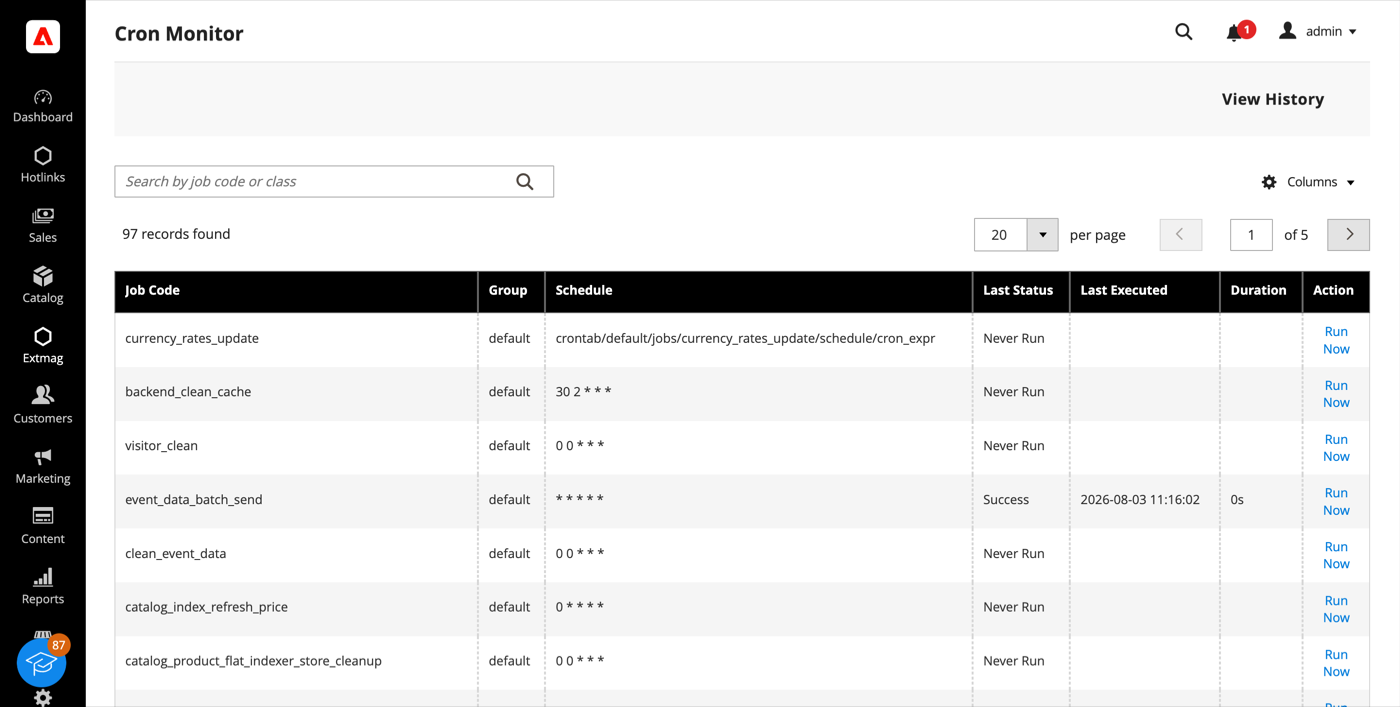
- Das Raster listet jeden Job der Installation — Gruppe, Zeitplanausdruck, letzter Status, letzter Lauf und Dauer.
- „Run Now“ führt einen einzelnen Job sofort aus, „View History“ zeigt seine früheren Läufe. Ein Job, der noch nie gelaufen ist, wird klar als solcher ausgewiesen — meist der schnellste Weg zu der Erkenntnis, dass der Cron nicht unter dem richtigen Benutzer läuft.
Config Diff
- Gehen Sie zu Admin Main Menu -> Extmag -> AdminWizard -> Config Diff.
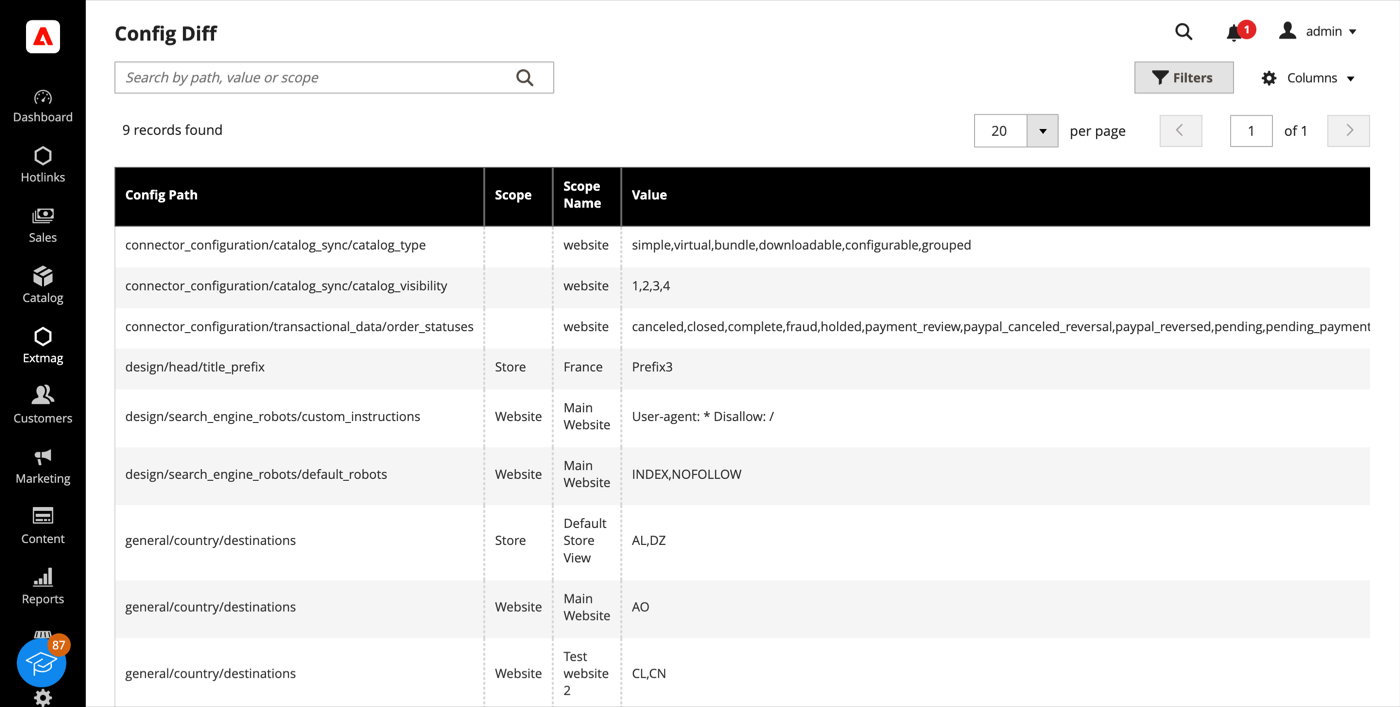
- Das Raster listet jeden Konfigurationspfad, den eine Website oder eine Store View überschreibt, mit Scope, dort geltendem Wert und dem Standard, von dem er abweicht.
Dieselbe Information gibt es feldweise an anderer Stelle im Admin: Ein von AdminWizard verwaltetes Feld zeigt neben der Eingabe ein Zahnradsymbol, und ein Klick darauf listet den Wert dieses Feldes in jedem Store auf, ohne den Scope zu wechseln.
Plugin & Preference Viewer
- Gehen Sie zu Admin Main Menu -> Extmag -> AdminWizard -> Plugin & Preference Viewer.
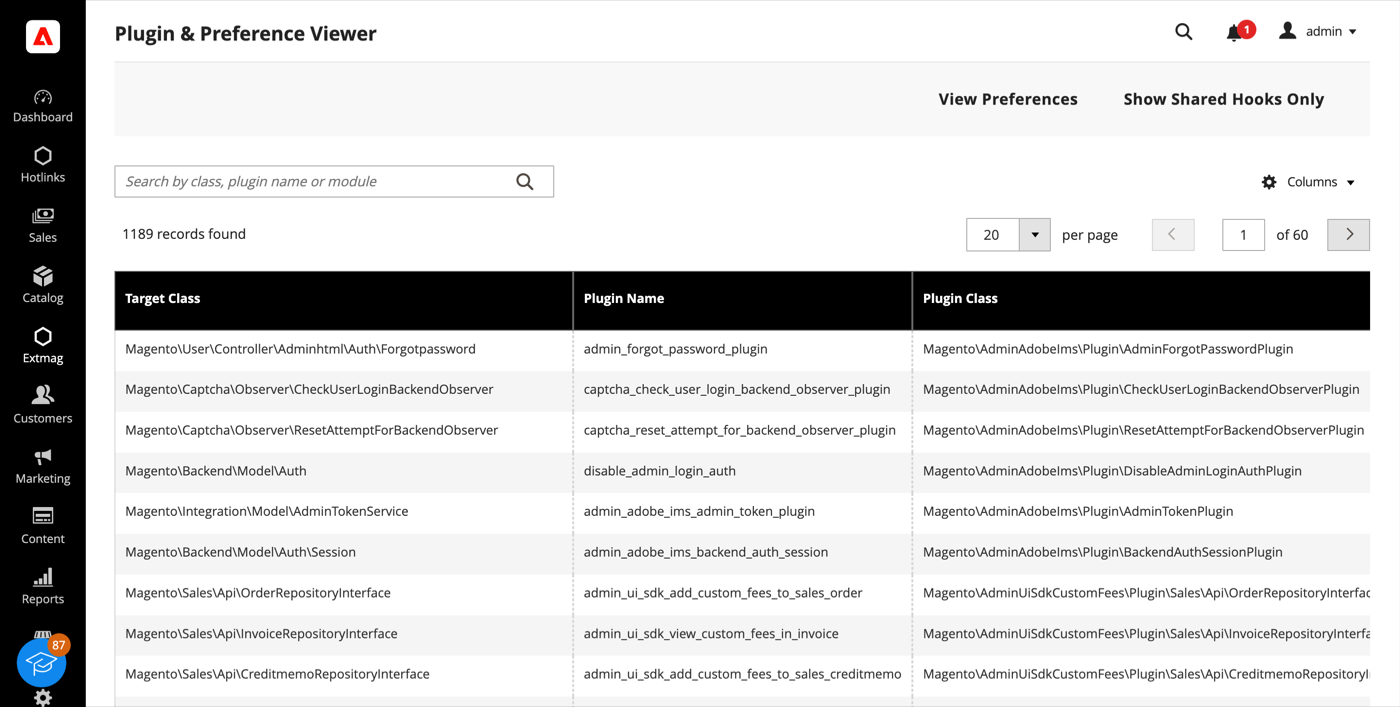
- Suchen Sie nach Zielklasse, Plugin-Klasse oder Modul, um jedes Plugin zu sehen, das eine Klasse abfängt — in Sortierreihenfolge und mit den Methoden, in die es sich hängt. „View Preferences“ wechselt zur Preference-Liste: welche konkrete Klasse hinter jedem Interface steht.
- „Show Shared Hooks Only“ verengt die Liste auf Methoden, die mehr als ein Plugin berührt — dort wohnen die Konflikte zwischen Erweiterungen.
Admin Sessions und Categories Grid
- Admin Sessions (Extmag -> AdminWizard -> Admin Sessions) listet jede Admin-Sitzung mit Benutzer, IP, Status, Startzeit und letzter Aktivität. Force Logout je Zeile beendet eine Sitzung sofort — die nächste Anfrage aus diesem Browser landet auf der Anmeldeseite.
- Categories Grid (Catalog -> Inventory -> Categories Grid) zeigt den Kategoriebaum als flaches, sortier- und filterbares Raster mit Pfad, Ebene, Status, Position und aktueller Produktanzahl. Nach leerer Produktanzahl filtern oder einen Stapel Kategorien auf einmal aktivieren dauert Sekunden, wo die Baumansicht viel Klicken kostet.
Index Management
Das native Raster unter System -> Tools -> Index Management erhält einen Rückstandszähler und den letzten Fehler je Indexer sowie eine Detailseite mit Laufhistorie, Abhängigkeiten und zwei Reglern: Pause hält die geplanten Aktualisierungen eines Indexers ganz an, Throttle begrenzt sie auf einen Durchlauf alle so viele Minuten. Beides ist für einen Massenimport oder eine Migration gedacht — anhalten, was nicht mithalten muss, und am Ende einmal neu indizieren. Ein manueller Reindex läuft immer, unabhängig von der Sperre.
Konfiguration
- Gehen Sie zu Admin Main Menu -> Extmag -> AdminWizard -> Configuration.
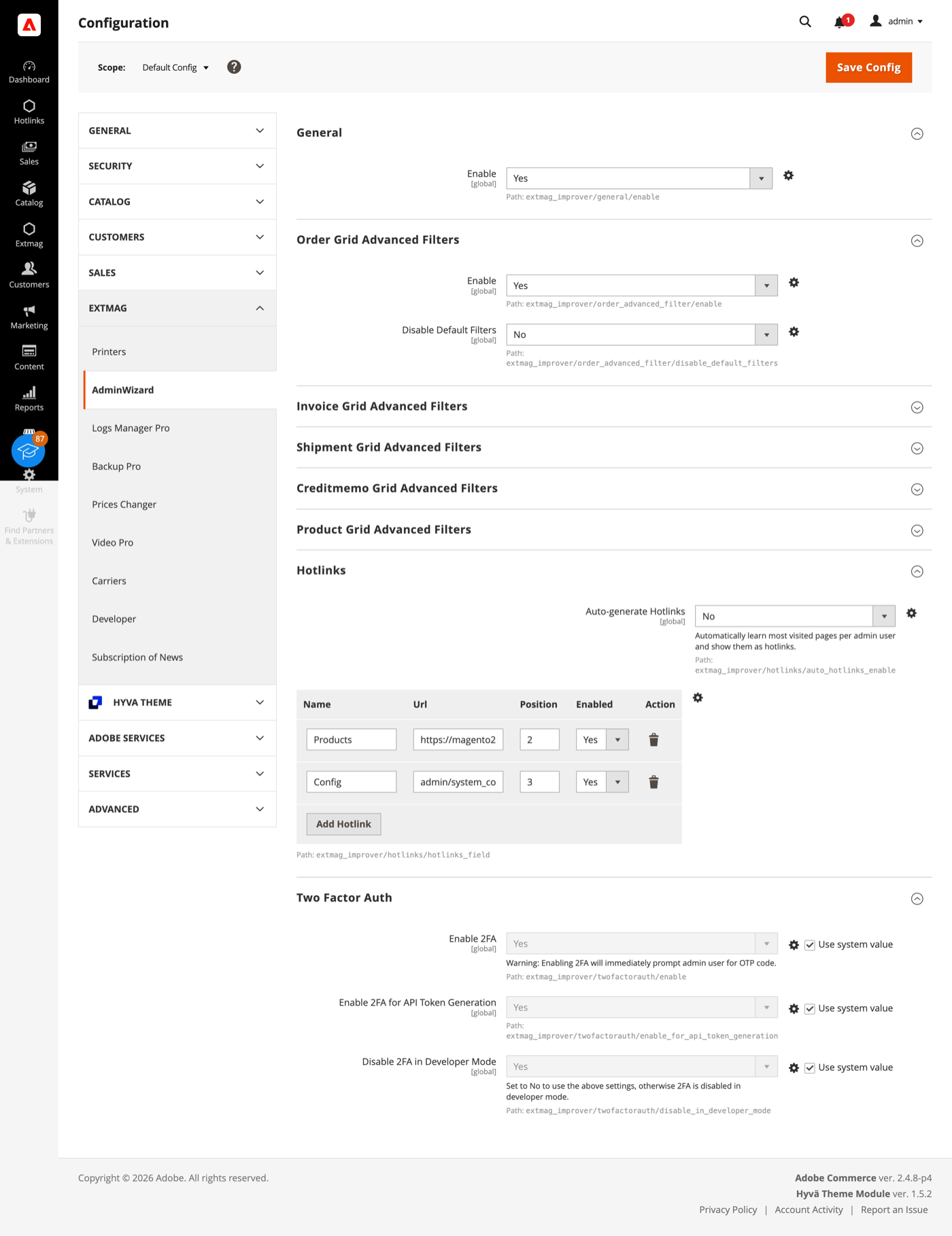
- Arbeiten Sie die Gruppen durch und füllen Sie aus, was auf Ihren Shop zutrifft.
Die Gruppen im Einzelnen:
- General — der Hauptschalter der Erweiterung.
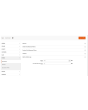
- Order, Invoice, Shipment, Credit Memo und Product Grid Advanced Filters — je eine Gruppe pro Raster: ob dort die erweiterten Filter erscheinen und ob die Standardfilter von Magento danach ausgeblendet werden.
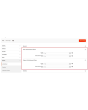
- Hotlinks — eine Tabelle von Verknüpfungen (Titel und URL, sortierbar und einzeln schaltbar), die für alle als Eintrag Hotlinks in der Admin-Seitenleiste erscheinen. Schalten Sie Auto-generate Hotlinks ein, bekommt zusätzlich jeder Bediener seine meistbesuchten Seiten, begrenzt auf die von Ihnen gesetzte Anzahl.
- Two Factor Auth — ob die Zwei-Faktor-Authentifizierung von Magento umgangen wird, getrennt für die Admin-Anmeldung und die Erzeugung von API-Token, mit der Option, die Umgehung im Entwicklermodus auszuschließen.
Die Zwei-Faktor-Authentifizierung ist eine Sicherheitsmaßnahme. Schalten Sie die Umgehung für einen Lasttest ein, für eine wiederhergestellte Kopie der Produktion oder für eine Installation, die bereits hinter einem Identitätsanbieter mit erzwungener MFA steht — nicht für einen öffentlichen Produktivshop ohne Ersatz dafür.
Eines wirkt ohne jede Einstellung: Wird ein Modul deaktiviert, verwirft Adobe Commerce (Magento) beim nächsten setup:upgrade dessen Datenbanktabellen. AdminWizard unterdrückt das, sodass ein zeitweises Deaktivieren die Daten nicht vernichtet. Standardmäßig aktiv.
Die vollständige Referenz Feld für Feld, samt der genauen Konfigurationspfade und der ACL-Ressourcen hinter jeder Seite, steht im Reference Manual, das der Erweiterung beiliegt.
1.4.7
Use injected $escaper instead of $block->escape*() in admin templates. Bind reload link via JS to comply with CSP restrict mode.
1.4.6
Fixed clearing advanced filters by iterating remove buttons and applying.
1.4.5
Added support Magento 2.4.9 and Adobe Commerce 2.4.9
1.4.4
Major refactoring: replace AdminActionLog with AdminSession, add Dashboard and new tools. Added support Magento 2.4.8-p4 and Adobe Commerce 2.4.8-p4
1.4.0
Added support Magento 2.4.7-p4 and Adobe Commerce 2.4.7-p4
1.3.9
Added support Magento 2.4.7-p3 and Adobe Commerce 2.4.7-p3
1.3.8
Added support Magento 2.4.7-p2 and Adobe Commerce 2.4.7-p2
1.3.7
Added support Magento 2.4.7-p1 and Adobe Commerce 2.4.7-p1
1.3.6
Fixed names of Google API classes. There were changing underscores to namespaces.
1.3.5
Backup Core:
Fixed Google Drive connection
Improved the frequency of the schedule
1.3.4
Added support Magento 2.4.7 and Adobe Commerce 2.4.7
1.3.3
Fixed bug with nullable variable in the method attribute
Fixed schedule frequency for the backup
1.3.2
Added support Magento 2.4.6-p4 and Adobe Commerce 2.4.6-p4
1.3.1
Removed extra button from Admin Actions Log Grid
1.3.0
A category grid has been added. Now you can manage your categories very conveniently. Now it’s convenient to filter, sort, create, edit, and delete them.
1.2.8
Added Advanced Filters for the Creditmemo Grid.
1.2.7
Added the ability to reverse admin actions. For example, you can return the saving of a configuration or product if it was done incorrectly or by mistake.
1.2.6
Added Advanced Filters for the Shipments Grid.
Added "Product Type", "Has Options", and "Required options" as filters for the Products grid.
1.2.5
Enable/disable two-factor authentication from the admin panel.
1.2.4
The Backup Manager Pro module has been integrated into the Admin Wizard module and has become part of it.
To check the correct connection to Cloud Storages, Test Connection buttons for Microsoft OneDrive, Google Drive, and Dropbox were added.
1.2.3
Fixed a bug with the Google Drive connection
1.2.2
The Logs Manager Pro module has been integrated into the Admin Wizard module and has become part of it.
To check the correct connection to Cloud Storages, Test Connection buttons for Microsoft OneDrive, Google Drive, and Dropbox were added.
1.2.1
Added support Magento 2.4.6-p2 and Adobe Commerce 2.4.6-p2
1.2.0
Implementation advanced filters for invoices.
Add translations.
1.1.0
Added support Adobe Commerce 2.4.6-p1
1.0.0
Added the new version 1.0.0


