
Prices Changer pour Magento® 2.x

À quelle fréquence devez-vous modifier le prix régulier ou le prix promotionnel d’un groupe de produits ? Avec notre module, vous le faites en quelques clics. Vous filtrez les produits selon n’importe quels attributs pour modifier leurs prix. Le module prend en charge plusieurs formules de modification de prix.
Sécurité
La sécurité de la modification des prix est assurée de deux manières :
1. Toutes les modifications de prix s’effectuent dans une transaction unique. En cas d’erreur, la base de données annule automatiquement les modifications.
2. Avant chaque modification de prix, notre module crée une sauvegarde des prix précédents. En cas d’erreur, vous pouvez à tout moment revenir en arrière.
Types de prix
Le module prend en charge les types de prix suivants :
- Price
- Special Price
- Cost
- Minimum Advertised Price (MSRP)
- Tier Price
- Customizable Options
- Attributs produit de type « Price »
Formules
Formules pour une modification flexible des prix :
- null : supprime le prix du produit.
- 20 : le nombre saisi remplace le prix actuel du produit.
- -20 : le prix du produit est réduit du nombre indiqué.
- +20 : le prix du produit est augmenté du montant indiqué.
- -10% : le prix est réduit du pourcentage indiqué.
- +20% : le prix est augmenté du pourcentage indiqué.
- max20 : nombre avec le préfixe « max » — le prix final est inférieur ou égal à ce nombre.
- min20 : nombre avec le préfixe « min » — le prix final est supérieur ou égal à ce nombre.
Les nombres 20 et 10 servent d’exemple. Dans votre cas, il peut s’agir de n’importe quels nombres.
La formule peut également utiliser d’autres types de prix. Types de prix accessibles : {{price}}, {{special_price}}, {{cost}}, {{msrp}}.
Dans un ensemble, plusieurs formules peuvent être utilisées.
Tous les prix doivent être indiqués dans la devise de base.
Démo
Vous pouvez essayer cette extension pendant 30 jours. Demandez la démo sur cette page avec Demander une démo ; son fonctionnement est expliqué sur Essayez une extension pendant 30 jours.
Exemples
Quelques exemples :
1
price: 80
cost: 50
formula: {{cost}} +150%
result: 125
2
price: 80
cost: 50
formula: {{cost}} +150% max110
result: 110
3
price: 80
formula: -15%
result: 65
| CMS | Magento 2 |
|---|---|
| Compatibilité | 2.4, 2.3 |
| Fonctionnalités |
|
L’extension s’installe avec Composer. Le dépôt à ajouter dépend de l’endroit où vous l’avez achetée — l’installation elle-même est identique dans les deux cas.
1. Connecter le dépôt
Achetée sur extmag.com. Votre page de compte affiche l’adresse du dépôt et vos identifiants personnels, ainsi que les deux commandes composer config à coller. Exécutez-les une fois par projet ; toutes les extensions que vous possédez sont ensuite disponibles depuis le même dépôt.
Achetée sur l’Adobe Commerce Marketplace. Le paquet est servi depuis repo.magento.com, déjà configuré sur la plupart des boutiques. Sinon, ajoutez les clés d’accès de votre compte Adobe sous My Profile -> Access Keys.
2. Installer l’extension
À la racine du projet, exécutez :
composer require extmag/pricer
php bin/magento setup:upgrade
php bin/magento cache:flush
Composer résout les paquets Extmag partagés dont dépend l’extension : rien d’autre n’est à exiger à la main.
Déconnectez-vous de l’admin puis reconnectez-vous, et l’extension est prête.
L’essayer avant d’acheter
Vous pouvez demander une démo de 30 jours de cette extension et l’installer exactement comme ci-dessus — même paquet, même dépôt, mêmes commandes. Comment fonctionnent les démos.
Installer sans Composer
L’archive peut être décompressée dans app/code/Extmag/, mais l’extension se retrouve alors hors de la gestion des dépendances : ses paquets partagés doivent être installés à la main et les mises à jour ne l’atteignent jamais. Utilisez Composer pour toute boutique que vous exploitez, démo comprise.
Pour toute question sur l’installation, contactez notre support technique.
-
User Guide User Guide.pdf · 3.0 MBTélécharger
-
Reference Manual Reference Manual.pdf · 425.3 KBTélécharger
-
Installation Guide Installation Guide.pdf · 224.6 KBTélécharger
Prices Changer se pilote depuis le menu Extmag de l’admin Adobe Commerce (Magento). Un changement de prix se décrit une fois sous forme de Replacer Set — quels produits il vise et quels sont les nouveaux prix — puis s’applique à la main ou se confie à un Schedule. Chaque écriture est journalisée et chaque set appliqué peut être annulé.
Replacer Sets
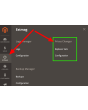
- Allez dans Admin Main Menu -> Extmag -> Prices Changer -> Replacer Sets.
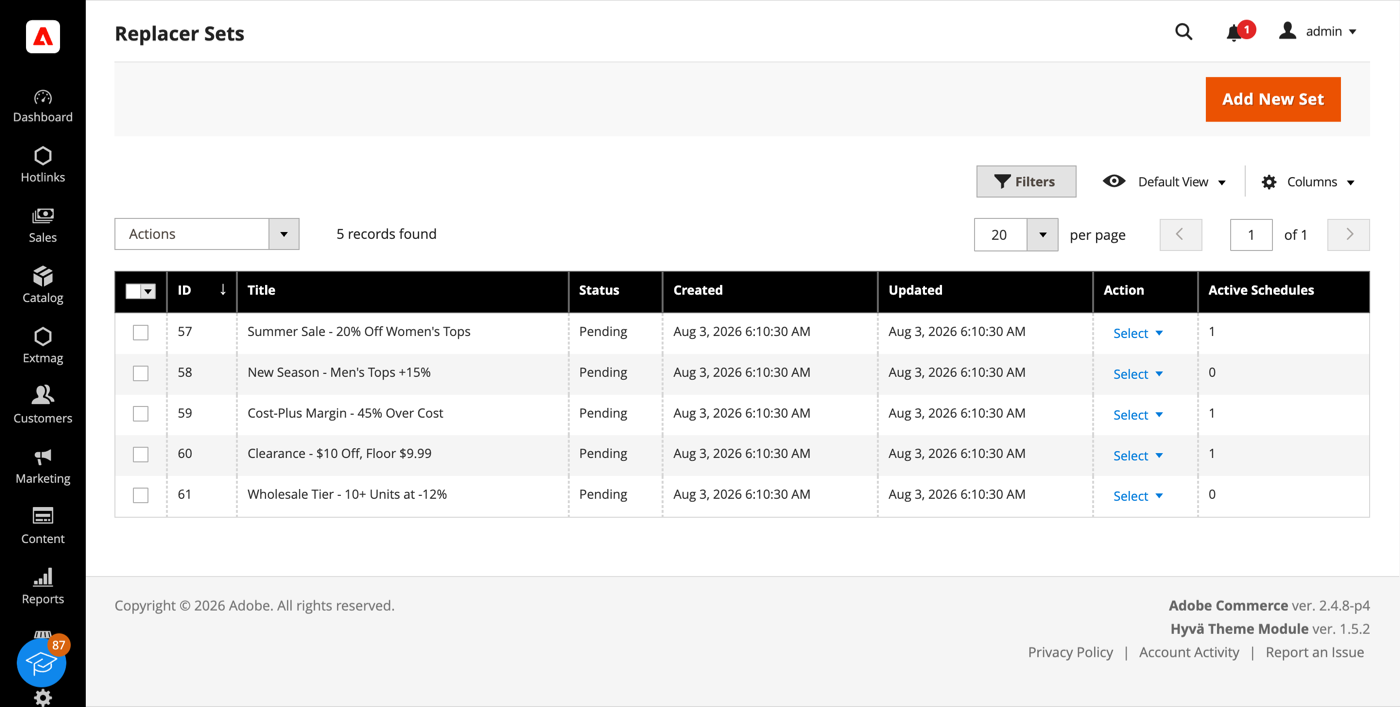
- Cliquez sur le bouton « Add New Set ».
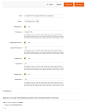
- Donnez un titre au set, activez les types de prix qu’il doit modifier et saisissez une formule pour chacun. Un type de prix laissé inactif n’est pas touché.
- Sous Conditions, choisissez les produits concernés — n’importe quel attribut produit ou catégorie, combinés par AND / OR. Un arbre de conditions vide désigne tout le catalogue.
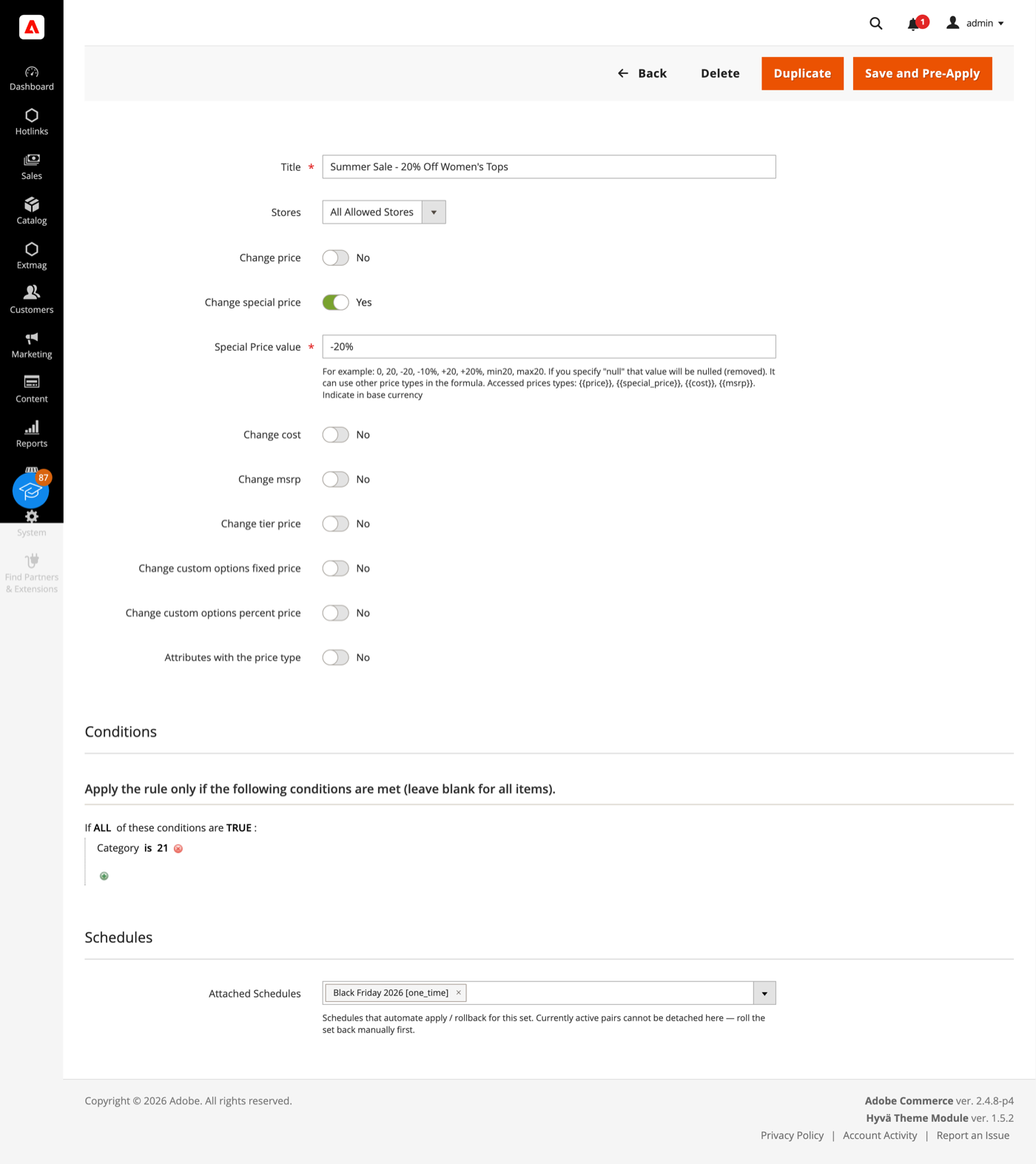
- Cliquez sur « Save and Pre-Apply ». Le set est enregistré en statut Pending ; rien n’est écrit dans le catalogue tant que vous ne l’appliquez pas ou qu’un Schedule ne se déclenche pas.
Une formule s’écrit dans la devise de base et peut être :
- 20 — remplacer le prix par ce nombre.
- +20 / -20 — augmenter ou baisser le prix d’un montant fixe.
- +20% / -10% — l’augmenter ou le baisser d’un pourcentage.
- min20 / max20 — borner le résultat par un plancher ou un plafond.
- null — retirer le prix du produit.
- {{cost}} +45% min19.99 — construire un prix à partir d’un autre. Les jetons
{{price}},{{special_price}},{{cost}}et{{msrp}}sont tous utilisables et se combinent.
Le set couvre Price, Special price, Cost, MSRP, Tier prices, Customizable Options et tout attribut de type Price, chacun avec sa propre formule.
Appliquer et annuler
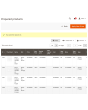
- Dans la grille des Replacer Sets, ouvrez le menu Select de la ligne et choisissez Apply.
- Avant toute écriture, le module sauvegarde les prix actuels des produits visés, afin que le changement puisse être défait plus tard. L’application elle-même se déroule dans une seule transaction de base de données — en cas d’erreur, la base restaure l’état précédent d’elle-même.
- Pour défaire un set appliqué, choisissez Rollback dans le même menu. Les prix sont restaurés à partir de cette sauvegarde.
Un set auquel un Schedule est attaché ne peut être appliqué ni annulé à la main tant que le Schedule est pending ou actif — détachez-le ou laissez-le finir, pour qu’un opérateur et le cron n’écrivent pas les mêmes prix en même temps.
Schedules
- Allez dans Admin Main Menu -> Extmag -> Prices Changer -> Schedules.
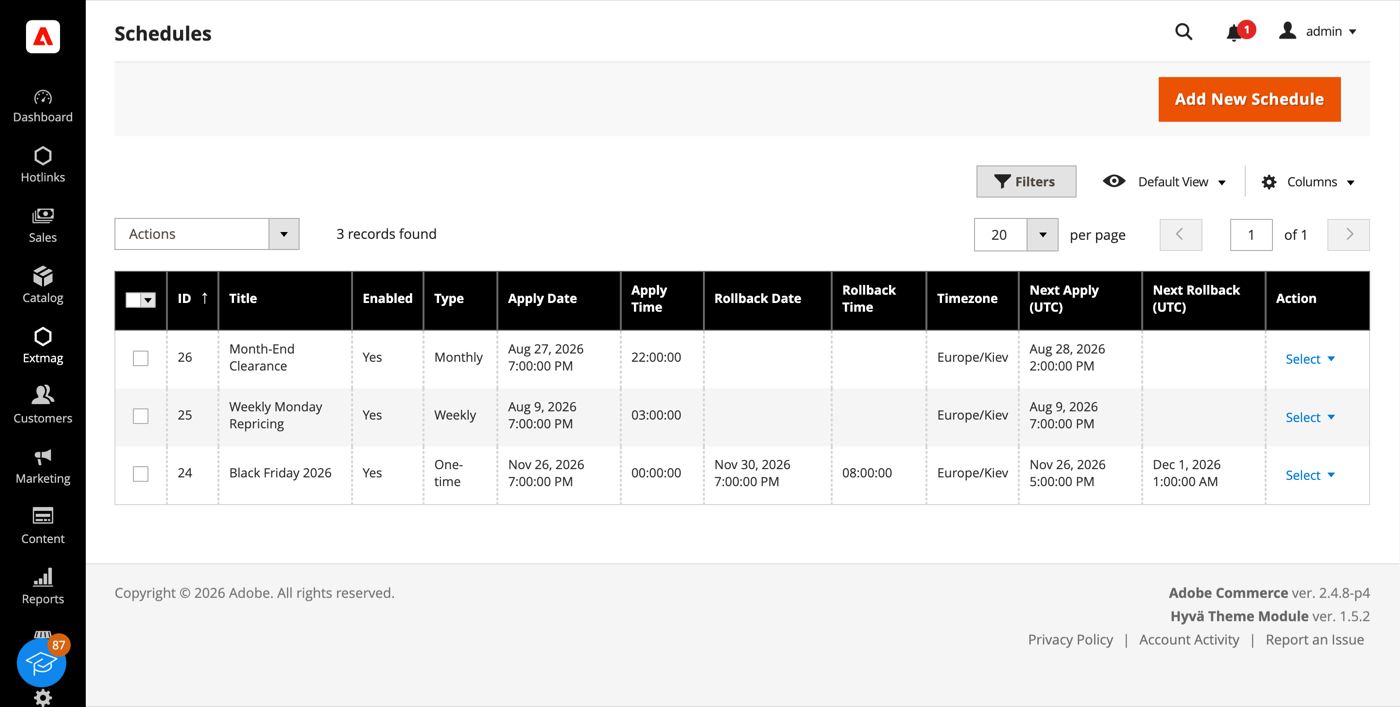
- Cliquez sur le bouton « Add New Schedule ».
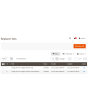
- Choisissez le déclenchement — ponctuel, annuel, mensuel, hebdomadaire ou une expression cron personnalisée — et fixez la date et l’heure d’application. Une date d’annulation est facultative : renseignez-la et les prix reviennent d’eux-mêmes.
- Choisissez le fuseau horaire dans lequel les heures sont lues. Les déclenchements sont stockés en UTC, si bien qu’un passage à l’heure d’été ne décale pas une promotion d’une heure.
- Attachez le Schedule à autant de sets que nécessaire — depuis le formulaire du Schedule, ou depuis le champ Schedules du set. Un Schedule peut piloter plusieurs sets, et un set peut porter plusieurs Schedules.
Chaque paire set/Schedule garde son propre état et son propre historique d’exécution : un échec sur un set n’arrête pas les autres. Lorsqu’un déclenchement échoue, le module peut prévenir par e-mail une liste de destinataires et déposer une notification dans la boîte de l’admin.
Price Change Log
- Allez dans Admin Main Menu -> Extmag -> Prices Changer -> Price Change Log.
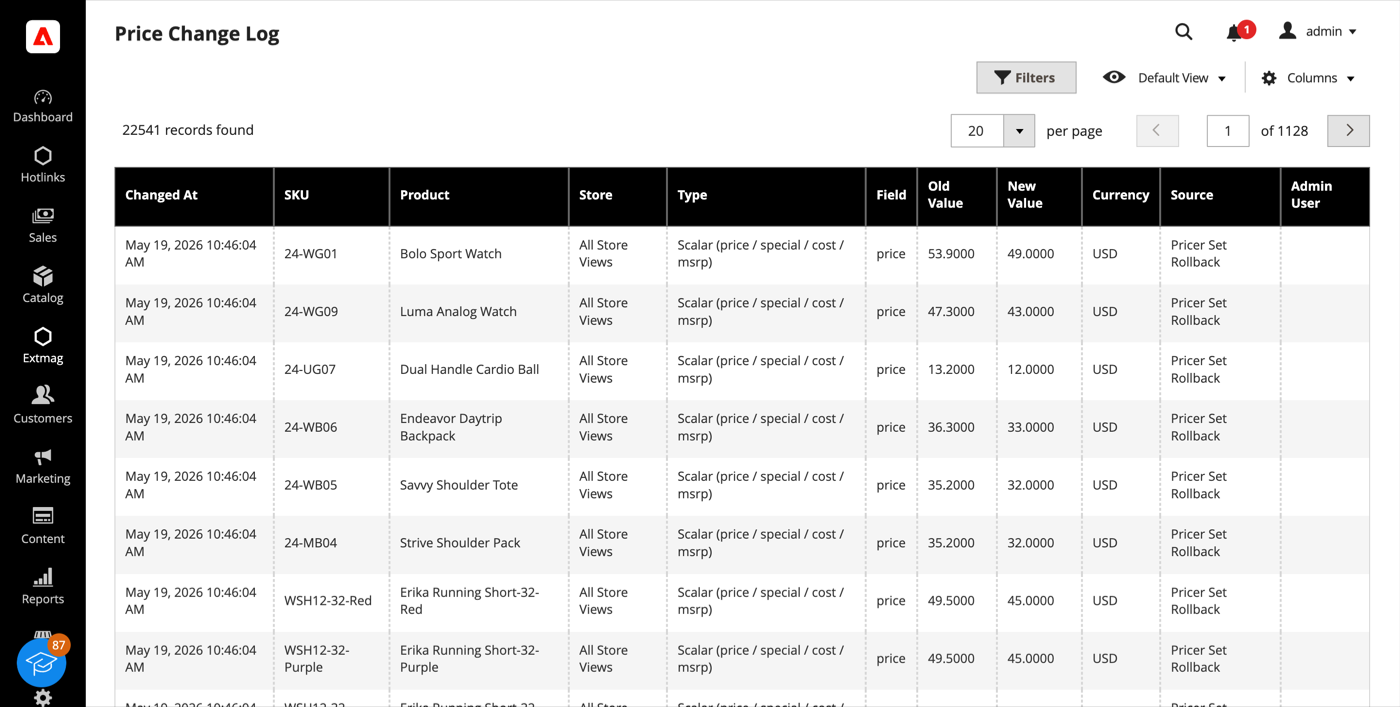
- Chaque écriture de prix est une ligne : le produit, la vue magasin, le type de prix et le champ, l’ancienne et la nouvelle valeur, la devise, qui a fait le changement et par quel biais — modification dans l’admin, import, API REST, un Apply ou un Rollback de Pricer.
- Price Log Statistics, dans le même menu, totalise le journal par source, par utilisateur admin et par SKU, et indique l’espace de stockage occupé.
Le journal ne fait que s’ajouter et il est écrit même quand le changement ne vient pas de ce module : il répond donc à « qui a baissé ce prix et quand » pour toute la boutique. Un cron quotidien supprime les lignes plus anciennes que la durée de conservation choisie.
Configuration
- Allez dans Admin Main Menu -> Extmag -> Prices Changer -> Configuration.
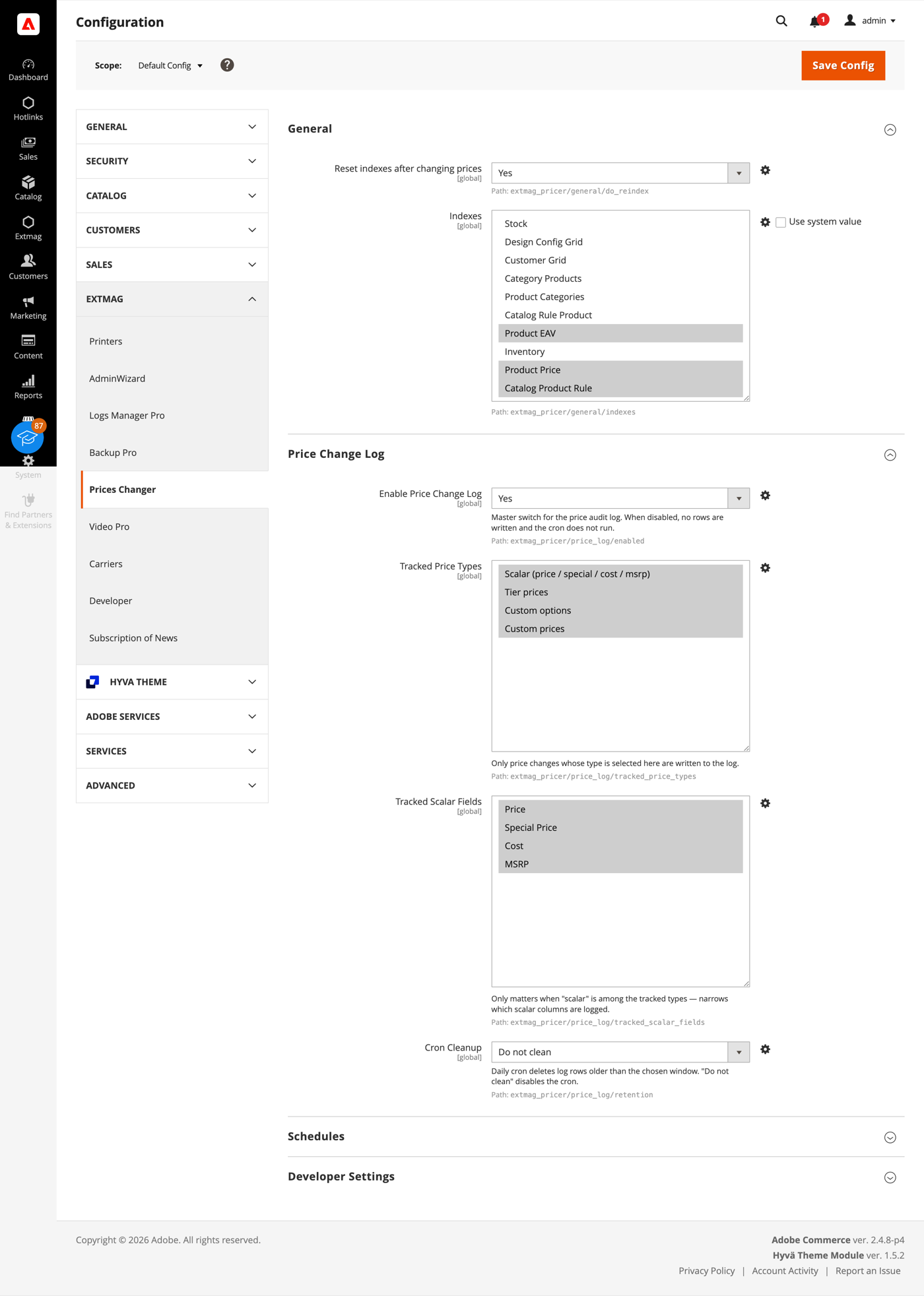
- Parcourez les groupes en remplissant ce qui s’applique à votre boutique.
Les groupes couvrent :
- General — si les index sont réinitialisés après un changement de prix, et lesquels.
- Price Change Log — l’interrupteur principal, les types de prix et champs scalaires suivis, et la durée de conservation des lignes avant le passage du cron de nettoyage.
- Schedules — l’interrupteur du cron des Schedules, le nombre traité par passage, le fuseau horaire par défaut, ainsi que les destinataires, le modèle et l’expéditeur des notifications d’échec.
- Developer Settings — la façon dont la passe d’application dialogue avec la base. Les valeurs par défaut conviennent à une boutique en production ; le mode par lots existe pour les catalogues au-delà de cent mille produits, où garder une transaction ouverte sur toute la durée n’est pas praticable.
Les sets tiennent compte du Catalog Price Scope. En scope global, les prix sont écrits une fois pour toutes les boutiques ; en scope website, un set retient le scope pour lequel il a été construit et refuse de s’appliquer dans un autre — un prix destiné à un site web n’atteint donc jamais les autres.
La référence complète champ par champ, avec les chemins de configuration exacts, figure dans le Reference Manual fourni avec l’extension.
2.0.0
Switched server_time template to Escaper helper for output escaping. Reverted CSV import source wording in Price Change Log docs. Hardened inline script rendering via SecureHtmlRenderer in schedule server_time template. Corrected Price Change Log import source description.
1.6.9
Added support Magento 2.4.8-p4 and Adobe Commerce 2.4.8-p4
1.6.8
Refactored code.
1.6.7
Added support Magento 2.4.8-p3 and Adobe Commerce 2.4.8-p3
1.6.6
Added support Magento 2.4.8-p2 and Adobe Commerce 2.4.8-p2
1.6.5
Added support Magento 2.4.8-p1 and Adobe Commerce 2.4.8-p1
Fixed price template validation
1.6.4
Added support Magento 2.4.8 and Adobe Commerce 2.4.8
1.6.3
Fixed a bug with the product attribute with the website scope
1.6.2
Fixed a bug with the default store if prices are not set globally but per website.
1.6.1
Fixed bug with store scopes.
Added support Magento 2.4.7-p5 and Adobe Commerce 2.4.7-p5
1.6.0
Added support Magento 2.4.7-p4 and Adobe Commerce 2.4.7-p4
1.5.9
Added support Magento 2.4.7-p3 and Adobe Commerce 2.4.7-p3
1.5.8
Added support Magento 2.4.7-p2 and Adobe Commerce 2.4.7-p2
1.5.7-1.5.8
Added support Magento 2.4.7-p2 and Adobe Commerce 2.4.7-p2
Added support Magento 2.4.7-p1 and Adobe Commerce 2.4.7-p1
1.5.7
Added support Magento 2.4.7-p1 and Adobe Commerce 2.4.7-p1
1.5.6
Added support Magento 2.4.7 and Adobe Commerce 2.4.7
1.5.5
Added support Magento 2.4.6-p4 and Adobe Commerce 2.4.6-p4
1.5.4
Added support Magento 2.4.6-p3 and Adobe Commerce 2.4.6-p3
1.5.3
Added support Magento 2.4.6-p2 and Adobe Commerce 2.4.6-p2
1.5.2
Added support Adobe Commerce 2.4.6-p1
1.5.1
Support Adobe Commerce (Magento) 2.4.6
Support PHP 8.1
1.5.0
Improved filtering product collection and resetting product indexes.
1.4.4
Added availability to reset all indexes after changing prices.
1.4.3
Fixed the problem with tier prices and option All Websites
1.4.2
Fixed some bugs with XML layout and PHP conditions.
1.4.1
Fixed some minor bugs with Conditions in Price Sets.
1.4.0
Added the ability to change the prices of product attributes with the type "Price"
1.3.0
Fixed some minor bugs.
Changed behavior for Website Prices and Global Prices.
1.2.0
Added the ability to change the prices of custom options
1.1.2
Fixed the PHP warnings
1.1.1
Support Adobe Commerce (Magento) 2.4.5-p1
1.1.0
Added opportunity for bulk changing Tier prices of products
1.0.0
Support PHP 8.1 and Adobe Commerce 2.4.4